
Most PC builders should verify DDR4 speed with simple monitoring tools before buying DDR5, because the cheaper fix is often enabling XMP or replacing a mismatched kit. DDR4 can still perform well in gaming, office work, and many creator workloads, but only when it runs at the correct frequency, timings, and channel mode.
TLDR: DDR4 speed tools such as CPU-Z, HWiNFO, AIDA64, and MemTest86 help confirm whether memory is running at its rated speed, while DDR5 offers more bandwidth but needs the right CPU and motherboard. For example, a 32 GB DDR4-3200 CL16 kit can sit within roughly 5% to 12% of basic DDR5-4800 in many games, while high-end DDR5-6000 may pull ahead in bandwidth-heavy tasks. A user upgrading an older Ryzen 5000 or Intel 10th Gen system may gain more from tuning DDR4 than from replacing the motherboard, CPU, and RAM together.
DDR4 Speed Still Matters
DDR4 speed is not just a number printed on a retail box. A kit sold as DDR4-3600 may run at 2133 MHz or 2400 MHz until the correct profile is enabled in BIOS. That single missed setting can cut memory bandwidth by a large margin.
The key DDR4 speed terms are:
- Frequency: Common ratings include DDR4-2666, DDR4-3200, DDR4-3600, and DDR4-4000.
- Timings: Lower CAS latency, such as CL16, usually helps response time.
- Channels: Dual-channel mode can nearly double bandwidth compared with single-channel operation.
- Voltage: Many performance DDR4 kits need 1.35 V instead of the default 1.20 V.
DDR4-3200 CL16 remains a practical sweet spot for many older systems. DDR4-3600 CL16 is often better for Ryzen 3000 and Ryzen 5000 builds, where memory speed can affect Infinity Fabric behavior. Faster kits can help, but gains shrink fast if the processor or motherboard cannot keep up.
DDR4 RAM Speed Tools: What They Actually Show
CPU-Z is the fastest way to check memory speed. Its Memory tab shows DRAM frequency, channel mode, and timings. Since DDR means “double data rate,” a DRAM frequency of 1600 MHz equals DDR4-3200. This confuses plenty of users. It drives many builders crazy that a correct setting still looks “half speed” until the math is understood.
HWiNFO gives deeper hardware readings. It reports memory clocks, motherboard sensors, voltages, and some profile data. The downside is clutter. On some systems, the sensor screen takes 10 to 20 seconds longer to scan than expected, and the wall of values can feel excessive for a quick RAM check.
AIDA64 is useful for benchmarking memory bandwidth and latency. It gives clear read, write, copy, and latency numbers. This helps compare DDR4-3200 against DDR4-3600, or tuned timings against stock settings.
MemTest86 and TestMem5 are better for stability testing. A kit can boot into Windows and still fail under stress. That matters after enabling XMP, manual timings, or higher voltage.
What DDR5 Changes
DDR5 brings higher base bandwidth, improved power management, and larger module capacities. Mainstream kits often start at DDR5-4800 and climb to DDR5-6000, DDR5-6400, or beyond. On modern Intel and AMD platforms, DDR5 can improve frame rates, compression speed, rendering, and integrated graphics performance.
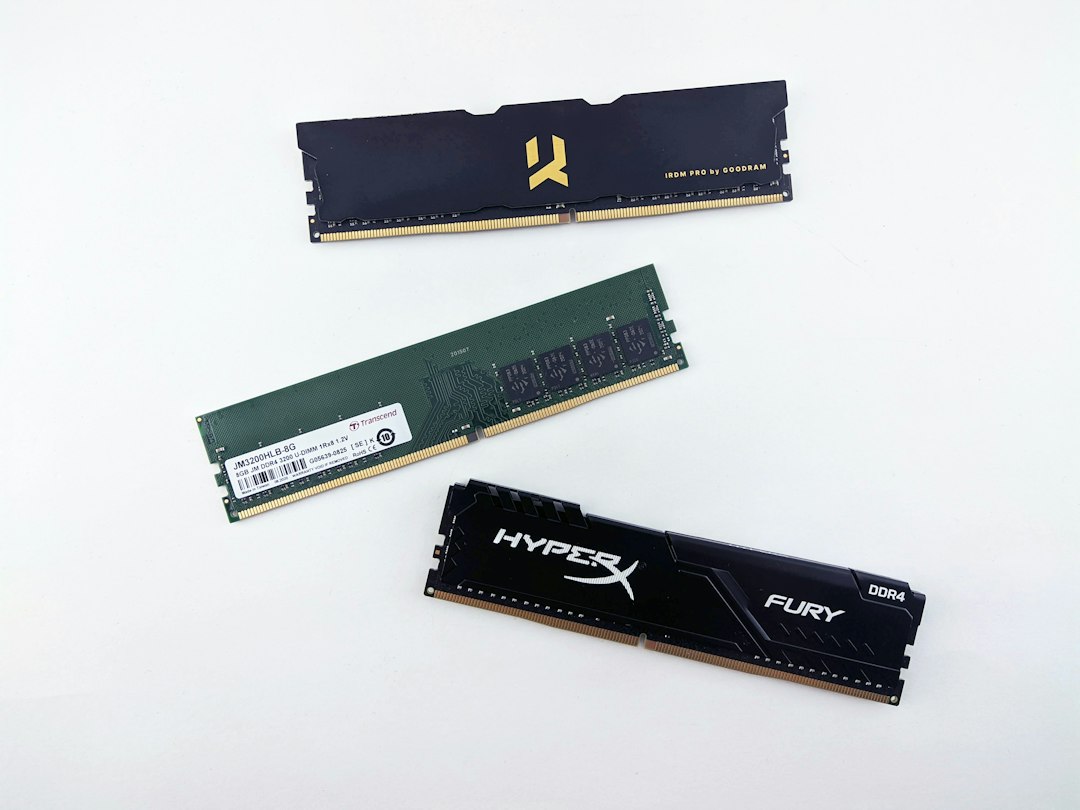
The catch is that DDR5 does not work in DDR4 motherboards. A user cannot place DDR5 into a DDR4 slot. The notch is different, the signaling is different, and the platform support is different. Moving from DDR4 to DDR5 often means buying a new motherboard and sometimes a new CPU.
DDR5 also has higher raw latency values on paper. A DDR5-6000 CL36 kit may look worse than DDR4-3200 CL16 by CAS number alone, but that does not tell the full story. Frequency, subtimings, memory controller behavior, and workload type all affect results.

DDR4 Tools vs DDR5 Upgrade: Which Gives Better Value?
Speed tools cost little or nothing. They help reveal hidden problems before money is spent. If DDR4 is running in single-channel mode, placed in the wrong slots, or stuck at JEDEC speed, a free fix may deliver a real gain.
A full DDR5 move can cost much more. The buyer may need:
- A DDR5-compatible motherboard
- A newer Intel or AMD processor
- A DDR5 memory kit
- Possibly a stronger cooler or power supply
For gaming with a strong graphics card, the difference between decent DDR4 and good DDR5 can be modest at 1440p or 4K. The GPU often becomes the limit. At 1080p with a high-end CPU and GPU, memory can matter more. Competitive titles may show better minimum frame rates with fast DDR5.
For productivity, the answer depends on the workload. Large code builds, file compression, video encoding, scientific tools, and heavy multitasking may benefit from DDR5 bandwidth. Basic browsing, spreadsheets, media playback, and older games do not justify a full platform swap on memory alone.
Hardware Comparison Alternatives
Software tools are only one part of the check. Hardware comparison sources can prevent bad purchases.
- Motherboard QVL lists: These show memory kits tested by the board maker.
- CPU memory support pages: These explain official DDR4 or DDR5 limits.
- Real benchmark databases: Game and application tests show practical gains.
- Retail kit specs: Part numbers reveal capacity, frequency, timings, and voltage.
- BIOS update notes: Memory stability often improves with newer firmware.
Comparing hardware by headline speed alone is risky. DDR4-4000 with loose timings may not beat DDR4-3600 with tighter timings. DDR5-5200 may not feel much different from DDR5-6000 in daily use. Capacity can matter more than speed when a system runs out of RAM.
For many users, 32 GB is now the safer target. Games, browsers, chat apps, launchers, and creative tools can eat memory quickly. A 16 GB system with faster RAM may still stutter if it fills up and starts using the SSD as overflow memory.
Best Practical Upgrade Paths
A DDR4 system should be checked in this order:
- Confirm dual-channel mode in CPU-Z.
- Enable XMP, DOCP, or EOCP in BIOS.
- Check actual speed after reboot.
- Run a memory stability test.
- Compare benchmark results before buying parts.
If the system already has 32 GB of DDR4-3200 or DDR4-3600, an upgrade to DDR5 may not feel dramatic unless the CPU is also outdated. If the system has 8 GB or 16 GB of slow DDR4, a larger DDR4 kit may be the smarter short-term buy.
A new build is different. For current AMD AM5 systems, DDR5 is required. For newer Intel builds, DDR5 is often preferred when prices are reasonable. DDR4 makes more sense for budget Intel platforms where board and memory cost must stay low.
Common Mistakes with DDR4 and DDR5
- Reading CPU-Z wrong: DDR4-3200 appears as 1600 MHz DRAM frequency.
- Mixing random kits: Different modules may force slower speeds.
- Ignoring motherboard slots: Wrong placement can disable dual-channel mode.
- Buying DDR5 for DDR4 boards: It will not fit or work.
- Trusting XMP without testing: A system can boot but still produce errors.
The best approach is simple: measure first, tune second, replace hardware only when the numbers and workload support the cost. DDR5 is faster in the right platform, but DDR4 is not useless. A well-configured DDR4 system can still feel sharp and stable.
FAQ
Is DDR4 still good for gaming?
Yes. DDR4-3200 or DDR4-3600 with dual-channel mode is still fine for many games, especially at 1440p or 4K where the graphics card carries more of the load.
What tool is best for checking DDR4 speed?
CPU-Z is the simplest choice. It quickly shows DRAM frequency, timings, and channel mode. HWiNFO and AIDA64 add deeper data.
Why does CPU-Z show half the advertised RAM speed?
DDR memory transfers data twice per clock cycle. If CPU-Z shows 1600 MHz, the effective speed is DDR4-3200.
Can DDR5 fit in a DDR4 motherboard?
No. DDR4 and DDR5 use different slots, signaling, and platform support. They are not interchangeable.
Is DDR5 always faster than DDR4?
Not always in a way users can feel. DDR5 has higher bandwidth, but real gains depend on the CPU, software, resolution, GPU, and memory kit quality.
Should an older DDR4 PC be upgraded or replaced?
If it already has enough CPU power, adding 32 GB of decent DDR4 may be cost-effective. If the CPU, board, and memory are all old, a DDR5 platform may make more sense.