
An SSID “number” is really the name of a Wi-Fi network, not a secret code, device ID, or internet address. You see it when your phone or laptop lists nearby networks, such as Home WiFi, Apartment 5G, or Cafe Guest. The SSID can be up to 32 characters long [source: Wikipedia].
TLDR: An SSID is the public Wi-Fi network name you choose from a list. For example, if your router broadcasts SmithFamilyWiFi, that is the SSID, while 192.168.1.1 might be the router IP address. In a home with 10 connected devices, all of them may use the same SSID and password, but each device still has its own MAC address. Rename your SSID if it gives away personal details, such as your full name or apartment number.
What Is an SSID?
SSID stands for Service Set Identifier. That sounds stiff, but the idea is simple. It is the label your router uses to announce, “This Wi-Fi network is available.”
When you open Wi-Fi settings on your phone, every name in the list is an SSID. Some are clear, like NETGEAR45. Some are funny, like Pretty Fly for a WiFi. Some are painfully unhelpful, like Router 2, which tells you almost nothing. It drives me crazy when a building has six networks named TP Link and nobody knows which one is theirs.
People often say “SSID number” because router stickers can look like a mess of numbers, letters, and barcodes. But the SSID itself is usually a name. It can contain numbers, but it is not the same thing as an IP address, MAC address, or Wi-Fi password.
SSID vs. Router IP Address
Your SSID is the Wi-Fi name you connect to. Your router IP address is the address used to reach the router’s settings page.
Common router IP addresses include:
- 192.168.0.1
- 192.168.1.1
- 10.0.0.1
You type that address into a browser to change settings, check connected devices, update the Wi-Fi name, or restart the router from its admin panel. The SSID is what your devices see over the air. The router IP is more like the router’s local “front desk.”
Here is the simple split:
- SSID: “Which Wi-Fi network should I join?”
- Router IP address: “Where do I manage the router?”
SSID vs. MAC Address
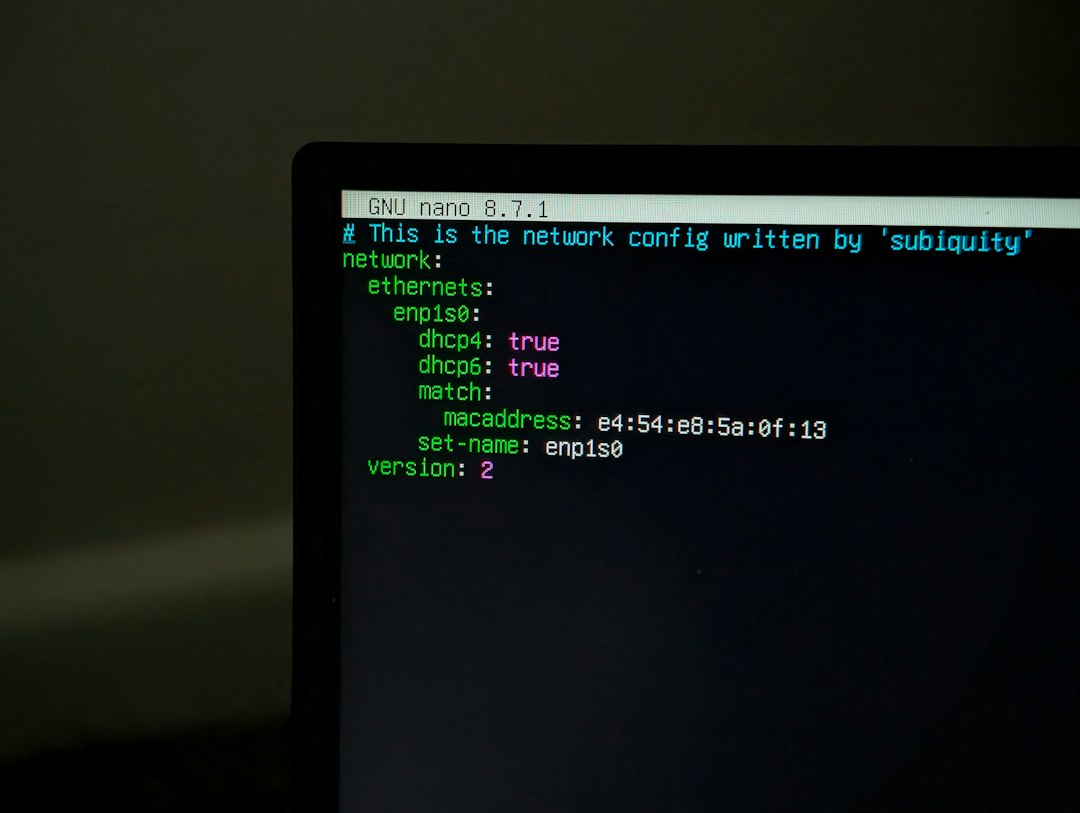
A MAC address is a unique hardware address for a network device. Your phone has one. Your laptop has one. Your router has one too.
A MAC address often looks like this:
3C:22:FB:9A:10:7D
Unlike an SSID, a MAC address is not meant to be a friendly name. It helps networks identify hardware. Some routers let you block or allow devices by MAC address. This is called MAC filtering.
The catch is, MAC filtering sounds stronger than it really is. It can stop casual users, but it is not serious protection by itself. Modern phones may also use random MAC addresses for privacy, which can make device lists confusing. Expect to waste a few extra minutes figuring out which “unknown device” is actually your own phone.
SSID vs. Wi-Fi Password
Your Wi-Fi password is the key that lets a device join the network. Your SSID is just the name of that network.
Think of it like a front door:
- SSID: The name on the house or apartment.
- Password: The key to get inside.
- Router IP: The office where you change house rules.
- MAC address: A unique ID tag on each visitor.
If your SSID is GreenHouseWiFi and your password is SunsetCoffee82, people nearby can see the SSID. They should not know the password unless you share it.
Should You Hide Your SSID?
Most people do not need to hide their SSID. Hiding it means your network name will not show up normally in Wi-Fi lists. You would need to type the name manually when connecting.
That sounds safer, but it is mostly annoying. It can make setup harder for smart TVs, printers, cameras, and guests. It also does not make the network invisible to someone with the right tools. A strong password matters far more.
For better security, use:
- WPA2 or WPA3 security.
- A long password with mixed words, numbers, and symbols.
- A guest network for visitors and smart home devices.
- A router admin password that is not the factory default.
How to Find Your SSID
You can usually find your SSID in three places:
- On the router label. Look for “Network Name,” “SSID,” or “Wi-Fi Name.”
- In your device settings. The connected Wi-Fi name is your current SSID.
- In the router admin page. Log in using the router IP address and check wireless settings.
If you changed the name before and forgot it, your phone or laptop may still show it under saved networks. If all else fails, pressing the router reset button can restore the default SSID and password. Be careful, though. That also wipes custom settings.
Good SSID Names and Bad SSID Names
A good SSID is easy to recognize but does not reveal too much. Use something simple, like MapleWiFi, BlueRoom, or RiverNet.
Avoid SSIDs that include:
- Your full name.
- Your street address.
- Your apartment number.
- Router model details.
- Jokes that may annoy neighbors or coworkers.
Bottom line: the SSID is your Wi-Fi network’s name. The router IP address opens the settings page. The MAC address identifies hardware. The Wi-Fi password controls access. Once you know which is which, fixing Wi-Fi problems becomes much less maddening.