
Change your App Store region from Settings > your name > Media & Purchases > View Account > Country/Region, but clear your Apple ID balance, subscriptions, and payment problems first. Apple says you may need to spend store credit, cancel subscriptions, and set a valid payment method for the new country before switching [source: Apple].
TLDR: You can change your App Store region on iPhone in about 2 to 5 minutes if your account is clean. For example, if you move from the US to Canada, add a Canadian payment method and billing address first. If you have even $0.10 in Apple ID balance, the switch may fail. The annoying part is that Apple does not always tell you the exact blocker right away.
Why change your App Store region?
You may want a new region because you moved. Or you need a local banking app. Or a game launched in one country first. Nice.
But your App Store region is tied to your Apple ID. That means it affects apps, subscriptions, prices, taxes, payment methods, and sometimes what you can download.
The catch is, Apple treats this like a serious account change. Not like changing your wallpaper. So expect a few checks.
Before you start
Do these first. It saves stress. It also saves you from tapping through menus for no reason.
- Spend your Apple ID balance. Even a tiny balance can block the change.
- Cancel active subscriptions. Wait until they fully end.
- Leave Family Sharing if needed. Family groups can lock region changes.
- Finish rentals and pre-orders. Do not leave loose ends.
- Have a local payment method ready. A card from the new country works best.
- Use a real billing address. Apple may check it.
Honestly, it feels like a tiny customs desk inside your phone. One missing detail, and the trip stops.
How to change your App Store region on iPhone
Here is the simple path.
- Open Settings.
- Tap your name at the top.
- Tap Media & Purchases.
- Tap View Account.
- Sign in with Face ID, Touch ID, or your password.
- Tap Country/Region.
- Tap Change Country or Region.
- Pick the new country.
- Read and accept the terms.
- Add your payment method and billing address.
- Tap Done.
If it works, great. Open the App Store and search again. You should now see apps and prices for the new region.
Payment methods can be picky
This is where many people get stuck.
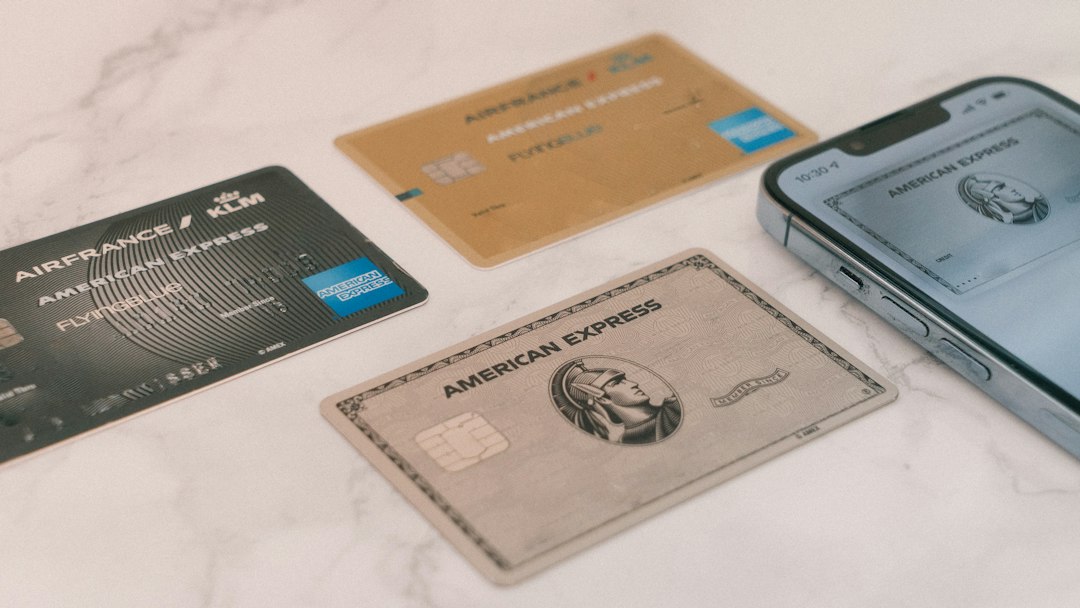
Your payment method usually needs to match the new region. A US debit card may not work for a Japan App Store account. A UK PayPal may not work in the German store. Gift cards are also region locked. A gift card bought in one country usually will not work in another.
Apple lists payment types by country and region, and they are not the same everywhere [source: Apple].
Common options include:
- Credit card
- Debit card
- PayPal, in some regions
- Mobile phone billing, in some regions
- Apple Account balance, but only for that region
If you see “Your payment method was declined”, do not panic. Check the card country. Check the billing address. Check the spelling. Yes, one wrong postal code can ruin the mood.
Common restrictions that block region changes
If the region button is missing or the change fails, one of these is usually guilty.
- Active subscriptions: Apple Music, iCloud+, Apple TV+, apps, or games.
- Remaining balance: Store credit must be spent first.
- Family Sharing: You may need to leave the family group.
- Pre-orders: Cancel them or wait until they finish.
- Rentals: Watch them or let them expire.
- Refunds pending: Wait until Apple finishes the request.
- Child accounts: These may need parent changes first.
It drives me crazy that a region change can fail after 30 seconds of spinning, then give a vague message. But the fix is usually boring. Clear the blocker. Try again.
What happens to your apps?
Your installed apps usually stay on your iPhone. They do not vanish like socks in a dryer.
But updates can get weird. If an app is not available in your new region, it may not update. You may also lose access to some content in apps, movies, music, books, or subscriptions.
Paid apps can be tricky too. You might not be able to re-download an app if it is missing from the new store.
Can you change regions without a payment method?
Sometimes, yes. Apple may show None as a payment option. But not always.
If you plan to download only free apps, try selecting None. If it does not show, Apple wants a valid local payment method. No magic button. Annoying, but normal.
Quick tips before you tap “Change”
- Take screenshots of your subscriptions first.
- Back up your iPhone.
- Use the country where you actually live.
- Do not switch regions often. It can cause account trouble.
- Check app availability before changing.
Changing your App Store region is easy when your Apple ID is tidy. Clean up your balance. End subscriptions. Add the right payment method. Then the switch is usually quick, simple, and far less annoying.