
Android phones can become warm during normal use, but excessive heat while charging or gaming is a warning sign that something is working harder than it should. Heat may come from the battery, CPU, GPU, charging circuit, background apps, weak network signals, or even a poorly ventilated phone case. When handled early, most overheating problems can be reduced without replacing the device.
TLDR: An Android phone that overheats while charging or gaming is usually struggling with heavy processor use, fast charging heat, poor airflow, or demanding apps running in the background. The safest fixes include removing the case, using the original charger, lowering game settings, closing background apps, updating software, and checking battery health. If the phone becomes too hot to touch, shuts down repeatedly, swells, or smells unusual, charging should stop immediately and the device should be inspected by a professional.
Why Android Phones Overheat While Charging or Gaming
Heat is a natural byproduct of electricity and processing power. During charging, power flows into the battery and charging components. During gaming, the CPU and GPU process graphics, physics, online data, sound, touch input, and background services. When both happen at the same time, the device may generate heat faster than it can release it.
Modern Android phones are designed with thermal controls. If temperatures rise too much, the system may reduce performance, dim the screen, slow charging, close apps, or shut down completely. These protections help prevent permanent damage, but frequent overheating still reduces comfort, performance, and long-term battery health.
Common causes include fast charging, high screen brightness, 5G or weak signal searches, heavy games, background apps, faulty cables, thick cases, and aging batteries. The fix depends on whether heat appears mostly during charging, gaming, or everyday app use.
Normal Warmth vs. Dangerous Overheating
A phone that feels slightly warm during gaming, navigation, video recording, or fast charging is usually normal. However, a device may be overheating if it becomes uncomfortable to hold, displays a temperature warning, charges very slowly, lags heavily, shuts down, or drains battery unusually fast.
- Normal warmth: The phone feels warm but works normally and cools down after rest.
- Moderate overheating: The device throttles performance, dims the display, or pauses charging.
- Serious overheating: The phone is painful to hold, shuts off, shows repeated warnings, or has battery swelling.
If the back panel lifts, the battery looks swollen, or there is a chemical smell, the device should not be charged or used. These signs can indicate battery failure and require professional service.
Battery and Charging Fixes
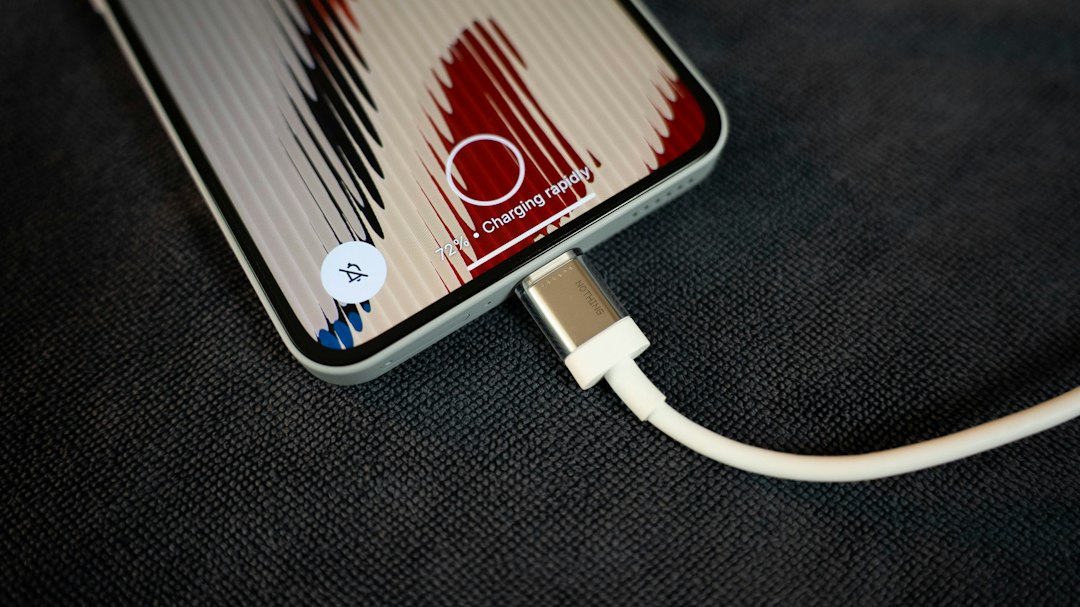
Charging-related overheating often begins with the charger, cable, wall adapter, charging habits, or battery condition. Fast charging is convenient, but it naturally produces more heat than slow charging. This is especially noticeable when the phone is already warm from gaming, navigation, or streaming.
Use the Correct Charger and Cable
The safest option is usually the original charger or a certified charger from a trusted manufacturer. Cheap or damaged accessories can deliver unstable power, causing extra heat and possible battery stress. A frayed cable, loose port, or adapter that gets unusually hot should be replaced.
- Use a charger that matches the phone manufacturer’s recommended wattage.
- Avoid unknown fast chargers with unclear safety ratings.
- Check whether the cable fits firmly into the charging port.
- Remove lint or dust from the port carefully, without using metal tools.
Avoid Gaming While Charging
Gaming while charging is one of the fastest ways to overheat an Android phone. The battery warms from charging while the CPU and GPU heat up from gameplay. If the phone owner needs to play for a long session, allowing the battery to charge first and then unplugging the device is safer.
Some phones include battery bypass charging or gaming mode features that power the device directly while reducing battery stress. If available, these options can help, but they should still be used with good ventilation and moderate graphics settings.
Remove the Case During Charging
A thick case traps heat around the battery and processor area. Leather, rugged, silicone, and wallet cases can reduce airflow, especially during fast charging. Removing the case for 20 to 30 minutes while charging often lowers the surface temperature noticeably.
Charge in a Cool Location
Heat from the environment makes charging heat worse. Phones should not be charged under pillows, inside bags, on car dashboards, or in direct sunlight. A hard, flat surface in a shaded room is better because it allows heat to spread away from the device.
CPU and Gaming Performance Fixes
Games are among the most demanding apps on Android. High frame rates, advanced graphics, multiplayer data, screen recording, voice chat, and high brightness all increase CPU and GPU load. When the processor works at maximum speed for too long, heat builds quickly.
Lower Game Graphics Settings
Many mobile games allow performance adjustments. Lowering the frame rate from 120 FPS to 60 FPS, or from 60 FPS to 30 FPS, can significantly reduce heat. Reducing shadows, texture quality, resolution, anti-aliasing, and special effects can also help.
- Frame rate: Lower FPS reduces GPU strain.
- Graphics quality: Medium settings often provide a better balance than ultra settings.
- Brightness: Lower brightness reduces display heat and battery drain.
- Vibration: Disabling haptics can reduce small but constant power use.

Take Cooling Breaks
Long gaming sessions should include short breaks. A five-minute pause every 30 to 45 minutes allows internal components to cool. The phone should be placed on a cool, dry surface, not in a refrigerator or freezer. Rapid temperature changes can create condensation, which may damage internal parts.
Turn Off Unneeded Features
Several features can quietly add heat during games. Bluetooth, GPS, mobile hotspot, screen recording, voice chat overlays, and background downloads all increase workload. If they are not needed, turning them off can reduce both heat and battery drain.
Network conditions matter as well. A phone may heat more during online games if the signal is weak because the modem increases power to maintain a connection. Switching to a stable Wi-Fi connection, when available, can reduce thermal stress.
App Usage and Background Process Fixes
Overheating does not always come from the visible app. Sometimes a social media app, cloud backup, navigation service, malware-like adware, or software bug runs heavily in the background. Android provides several tools for identifying battery-heavy apps.
Check Battery Usage
Most Android phones allow the owner to check which apps are using the most power. The exact path may vary, but it is usually found under Settings > Battery > Battery Usage. Apps with unusually high usage should be updated, restricted, or removed if they are not essential.
- Open the battery usage screen after the phone becomes hot.
- Look for apps using a large percentage of battery in the background.
- Force stop suspicious apps temporarily to test whether heat improves.
- Uninstall rarely used apps that run constant services.
Restrict Background Activity
Android allows background restrictions for many apps. This can prevent social media, shopping, weather, and news apps from constantly syncing. Restricting background activity may delay notifications, but it can improve temperature and battery life.
For important apps such as messaging, banking, or security tools, restrictions should be applied carefully. The goal is not to disable everything, but to stop unnecessary processes from keeping the processor awake.
Update Apps and Android Software
Outdated software can cause overheating if bugs make an app loop, sync repeatedly, or fail to sleep properly. App updates often include performance improvements and battery fixes. Android system updates may also improve thermal management, modem behavior, and charging control.
If overheating began after a recent update, clearing the app cache or uninstalling and reinstalling the affected app may help. If many apps are misbehaving after a system update, restarting the phone and allowing it to finish background optimization can improve performance after a day or two.
Screen, Network, and Storage Factors
The display is one of the largest power consumers on a phone. High brightness, always-on display, live wallpapers, and high refresh rates can increase heat, especially during gaming or video streaming. Setting brightness to automatic or lowering it manually can make a major difference.
High refresh rate modes such as 90 Hz, 120 Hz, or 144 Hz look smoother but demand more power. Switching to standard refresh rate during long gaming or charging sessions can help keep temperatures under control.
Poor storage conditions can also affect heat. When a phone has very little free space, apps may struggle to cache files, update, or operate smoothly. Keeping at least 10 to 15 percent of storage free can improve general performance and reduce unnecessary background work.
When to Restart, Reset, or Seek Repair
A simple restart can stop stuck processes and clear temporary system issues. If the phone suddenly overheats without a clear reason, restarting is a good first step. If heat returns immediately, battery usage and recently installed apps should be checked.
Safe Mode can help identify whether a third-party app is responsible. In Safe Mode, downloaded apps are temporarily disabled. If the phone stays cool in Safe Mode, one of the installed apps is likely causing the problem.
A factory reset may be considered only after backups are complete and simpler fixes have failed. It can remove software conflicts, but it will not repair a damaged battery, faulty charging port, or failing motherboard. If overheating continues after a clean reset, hardware service is likely needed.
Best Practices to Prevent Future Overheating
- Keep the phone out of direct sunlight and hot cars.
- Avoid charging under blankets, pillows, or thick materials.
- Use certified chargers and undamaged cables.
- Do not play demanding games while fast charging.
- Lower graphics settings during long gaming sessions.
- Close or restrict battery-draining background apps.
- Install Android and app updates regularly.
- Remove the case if the device feels unusually hot.
- Give the phone short cooling breaks during heavy use.
Overheating is usually manageable when the cause is software, settings, or charging habits. The key is to reduce the workload, improve airflow, and avoid combining heat-heavy activities. However, repeated extreme heat should never be ignored because battery damage can become a safety risk.
FAQ
Why does an Android phone get hot while charging?
An Android phone heats while charging because electricity flows into the battery and charging circuit. Fast charging, a thick case, hot surroundings, damaged cables, or background app activity can make the heat worse.
Is it safe to use a phone while it is charging?
Light use is usually safe, but gaming, video editing, hotspot use, or navigation while charging can cause overheating. If the phone becomes very warm, it should be unplugged and allowed to cool.
Can overheating damage the battery?
Yes. Repeated exposure to high heat can shorten battery life, reduce capacity, slow charging, and increase the risk of swelling or failure over time.
Why does gaming make an Android phone overheat?
Gaming uses the CPU, GPU, screen, speakers, network modem, and sometimes GPS or voice chat at the same time. This high workload creates heat, especially with high graphics settings or long sessions.
Should a hot phone be placed in a refrigerator?
No. A refrigerator or freezer can cause condensation inside the phone. The safer method is to stop heavy use, unplug the charger, remove the case, and let the phone cool at room temperature.
Which apps cause overheating?
Apps that stream video, run GPS, sync constantly, display ads heavily, mine data, record the screen, or remain active in the background can cause heat. Battery usage settings can help identify them.
When should professional repair be considered?
Professional repair is recommended if the phone is too hot to touch, shuts down repeatedly, charges abnormally, has a swollen battery, smells unusual, or keeps overheating after software fixes and a factory reset.