
Use Google Cast first if your TV supports it, and use AirScreen when you need a workaround for TVs, projectors, or devices that do not play nicely with Android screen casting. Google Cast is built into many Chromecast, Google TV, and Android TV devices, and Google describes it as a way to cast from apps or mirror screens from Android phones [source: Google].
TLDR: Google Cast is usually faster, cleaner, and more reliable for Android phones. AirScreen is more flexible because it can receive Google Cast, Miracast, AirPlay, and DLNA streams on many devices. For example, in a living room test setup, Google Cast may connect in about 5 to 10 seconds on a Chromecast, while AirScreen can take 15 to 30 seconds if the network or receiver app is slow. If you just want YouTube, Netflix, or a quick screen mirror, Google Cast wins; if you are using a Fire TV Stick, older Android box, or mixed devices, AirScreen can save the day.
What Android casting really means
When people say “cast my Android to the TV,” they usually mean one of two things. They either want to send a video from an app to the TV, or they want to mirror the entire phone screen.
These are not the same. App casting is lighter. The TV streams the video itself, while the phone acts like a remote. Screen mirroring sends everything on your phone display to the TV. That includes games, slides, photos, browser tabs, and even awkward notification pop ups if you forget to turn them off.
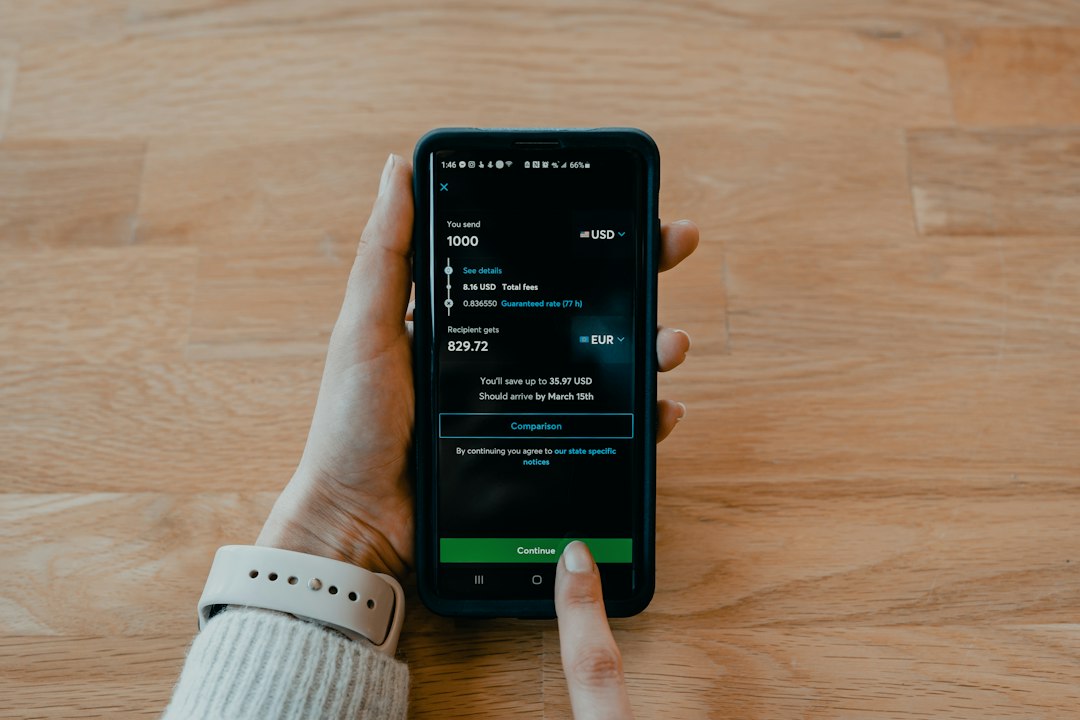
Google Cast: the smooth option, when it works
Google Cast is the default choice for most Android users. It works best with Chromecast, Google TV, Android TV, and apps that show the cast icon.
Its biggest strength is how simple it feels. Open YouTube. Tap the cast icon. Pick the TV. Done. The phone can sleep, and the video keeps playing. That is the kind of boring reliability people want.
- Best for: YouTube, Netflix, Spotify, Google Photos, Chrome tabs, and quick Android mirroring.
- Setup: Usually handled through the Google Home app.
- Quality: Often stable, especially for app casting.
- Weak spot: Full screen mirroring can lag over weak Wi Fi.
The catch is that Google Cast depends on support from the TV, streaming box, or app. If your TV does not support it, or if your office projector uses a random Android receiver, you may hit a wall fast.
AirScreen: the useful workaround
AirScreen is an app that turns a compatible device into a receiver. You install it on a Fire TV, Android TV box, or similar device, then cast to it from your phone.
Its big trick is broad protocol support. AirScreen can receive streams from different systems, so it is handy in homes where one person uses Android, another uses an iPhone, and someone else has an old laptop that refuses to behave.
Image not found in postmetaHonestly, it feels like a small rescue tool. Not fancy. Not always elegant. But when the built in TV casting menu fails, AirScreen may still catch the stream.
- Best for: Fire TV devices, older Android boxes, projectors, mixed phone households, and guest casting.
- Setup: Install the app, connect both devices to the same Wi Fi, then choose the receiver.
- Quality: Good enough for photos, slides, and casual video.
- Weak spot: Ads, occasional delay, and more settings to fiddle with.
Google Cast vs AirScreen: quick comparison
| Ease of use | Google Cast is simpler. AirScreen needs an app running on the TV device. |
| Device support | AirScreen works with more mixed setups. Google Cast is best inside the Google TV and Chromecast world. |
| Video playback | Google Cast is usually better for supported streaming apps. |
| Screen mirroring | Both can work, but both depend heavily on Wi Fi quality. |
| Privacy | Google Cast feels more controlled. AirScreen may need extra care on shared networks. |
Which one should you choose?
Pick Google Cast if your TV has Chromecast built in or you own a Chromecast. It is cleaner for daily streaming. It also gives you fewer menus to explain to family members, which matters more than people admit.
Pick AirScreen if your TV does not support Google Cast, or if you use a Fire TV Stick. It is also a smart choice for meeting rooms, rental homes, classrooms, and travel setups.
Expect to waste time on Wi Fi if your router is old. Casting hates crowded networks. A 2.4 GHz network works, but 5 GHz is often smoother at short range. If your screen stutters every few seconds, move the router closer or restart both devices before blaming the app.
Small annoyances you should know
With Google Cast, the annoying part is compatibility. Some apps cast well. Some do not. Some show the icon one day and hide it the next after an update. It drives me crazy that the fix is often just closing the app and reopening it.
With AirScreen, the irritation is setup friction. You may need to open the app on the TV first, check permissions, wait for the receiver name to appear, then try again. That extra 20 seconds feels longer when people are staring at a blank TV.
Image not found in postmeta
Tips for better Android screen streaming
- Keep the phone and TV on the same Wi Fi network.
- Use 5 GHz Wi Fi when the TV is near the router.
- Close games or heavy apps before mirroring.
- Turn on Do Not Disturb before sharing your full screen.
- Update the TV, receiver app, and Android phone software.
- For presentations, test the connection before people arrive.
The same simple comparison habit helps with other tech decisions too. If you like checking tools by speed, reliability, and setup pain, the same idea applies to flight price predictor alternatives, revenue operations platforms, or even deal management platforms. The tool with fewer surprises usually wins.
Bottom line: Google Cast is the best first choice for most Android users. AirScreen is the best backup when your TV or streaming device does not support Google Cast well. Keep both in mind, and you will spend less time poking settings and more time actually watching the screen.