
If your Bazoocam camera is not working, the experience can quickly shift from entertaining to frustrating. Whether your webcam fails to load, displays a black screen, or refuses to connect at all, these issues are usually caused by browser permissions, outdated drivers, conflicting applications, or unstable internet connections. The good news is that most camera problems can be resolved with simple, systematic troubleshooting. This guide walks you step-by-step through proven solutions to restore your connection safely and effectively.
TLDR: If Bazoocam can’t access your camera, first check browser permissions and ensure your webcam is selected as the default device. Update your drivers, close conflicting apps like Zoom or Skype, and verify your internet connection is stable. Clearing cache, disabling VPNs, and testing the camera on another site can also quickly identify the root problem. Most issues are software related and can be fixed in minutes.
Why Your Bazoocam Camera May Not Be Working
Before diving into fixes, it’s important to understand the most common causes of connection issues. Typically, webcam failures fall into four major categories:
- Browser permission restrictions
- Outdated or corrupt camera drivers
- Conflicts with other applications
- Hardware or connectivity problems
Identifying which category applies to your situation will save you time and prevent unnecessary troubleshooting.
1. Check Browser Camera Permissions First
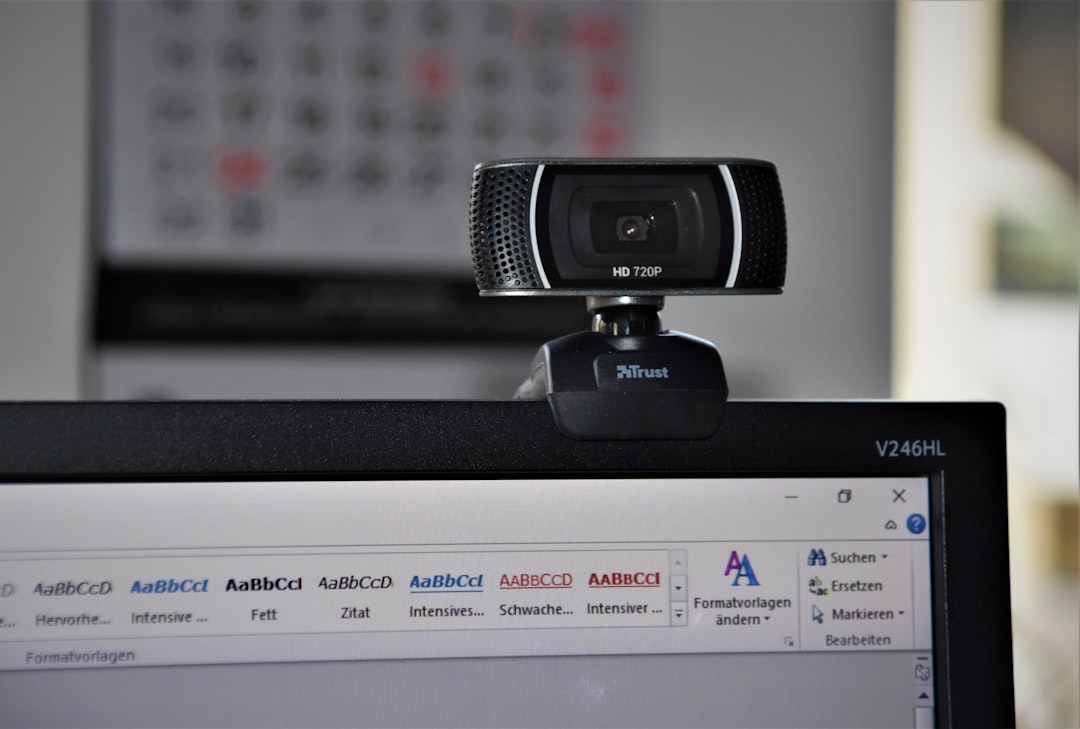
In most cases, Bazoocam cannot access your webcam because the browser is blocking it. Modern browsers require explicit permission before allowing camera use.
How to Fix Browser Permission Issues
- Open Bazoocam in your browser.
- Look for the camera icon in the address bar.
- Click it and ensure camera access is set to Allow.
- Refresh the page after updating permissions.
If you accidentally clicked “Block” previously, you may need to manually change the setting in your browser’s privacy or site settings menu.
Important: Make sure the correct camera is selected if you use multiple devices (for example, a built-in webcam and an external USB camera).
2. Ensure No Other Applications Are Using the Camera
Webcams can usually only be accessed by one application at a time. If Zoom, Skype, Microsoft Teams, Discord, or another video platform is open in the background, Bazoocam may not connect.
Steps to Resolve Software Conflicts
- Close all video conferencing applications completely.
- Check your system tray for background programs.
- Restart your browser after closing other apps.
- Reboot your computer if necessary.
After restarting, try accessing Bazoocam again before opening any other software.
3. Test Your Webcam Outside of Bazoocam
Before assuming the issue is platform-specific, test your webcam using another service such as your device’s built-in camera app.
How to Perform a Quick Camera Test
- On Windows: Open the Camera app.
- On Mac: Use Photo Booth.
- Try a video call on another trusted website.
If the camera does not work anywhere, the problem is likely driver-related or hardware-based. If it works elsewhere but not on Bazoocam, the issue is likely browser or connection related.
4. Update or Reinstall Camera Drivers
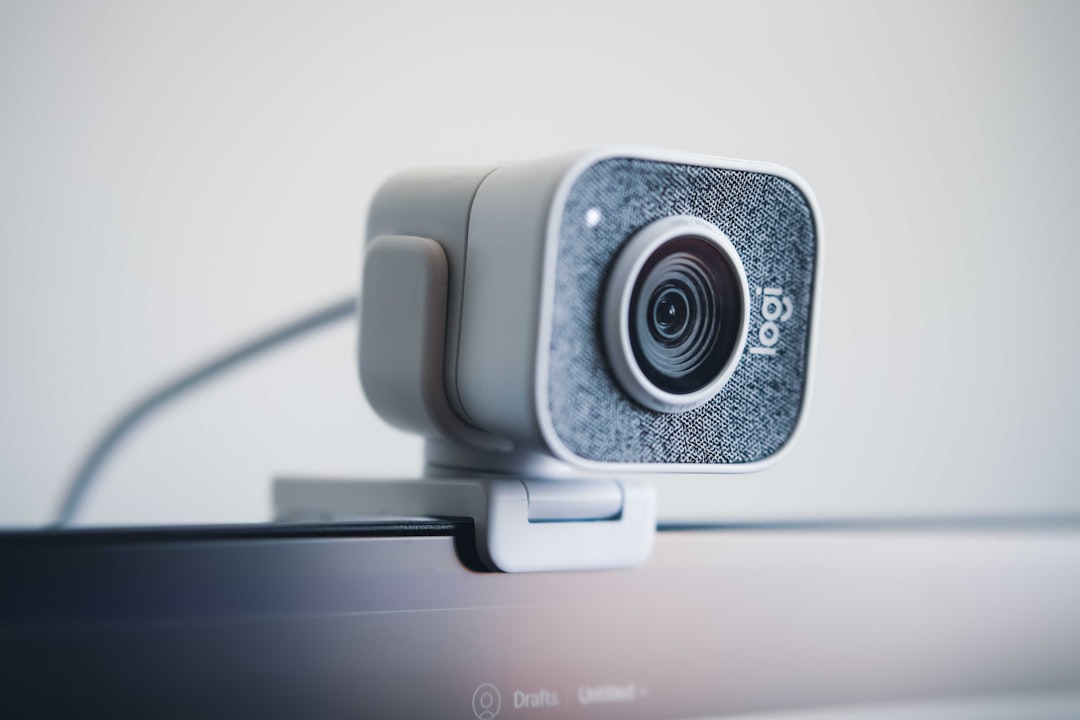
Outdated or corrupted drivers are a frequent cause of webcam failure. Operating system updates can sometimes interfere with driver compatibility.
Updating Webcam Drivers on Windows
- Right-click the Start button.
- Select Device Manager.
- Find your camera under “Cameras” or “Imaging devices.”
- Right-click and choose Update driver.
If updating doesn’t work, try uninstalling the driver and restarting your computer. The system will typically reinstall the correct version automatically.
Mac users: Camera drivers are integrated into macOS. Ensure your operating system is updated to the latest version.
5. Check Your Internet Connection Stability
Bazoocam relies on a stable internet connection to establish video chats. Weak Wi-Fi signals, network congestion, or firewalls can disrupt camera initialization.
How to Improve Connection Quality
- Switch from Wi-Fi to a wired Ethernet connection if possible.
- Restart your modem and router.
- Close bandwidth-heavy apps like streaming services.
- Disable VPNs temporarily.
Some VPNs and strict firewall settings block peer-to-peer video connections. If your camera suddenly stops working after enabling a VPN, try disabling it temporarily to test the connection.
6. Clear Browser Cache and Cookies
Corrupted cache files can interfere with multimedia permissions and page loading behavior. Clearing cache often resolves persistent camera errors.
General Steps
- Open browser settings.
- Navigate to Privacy or History.
- Select Clear browsing data.
- Choose cached images and cookies.
- Restart the browser.
After clearing data, you will need to grant camera permissions again.
7. Disable Antivirus or Security Extensions Temporarily
Some security programs block camera access to protect user privacy. While this is generally beneficial, it can mistakenly prevent legitimate use.
Try temporarily disabling:
- Browser privacy extensions
- Ad blockers
- Webcam protection features in antivirus software
If the camera works after disabling them, re-enable tools one by one to identify the conflicting program.
8. Try a Different Browser
If problems persist, the issue may be browser-specific. Compatibility and updates can impact webcam performance.
Test Bazoocam using:
- Google Chrome
- Mozilla Firefox
- Microsoft Edge
Ensure you are running the latest version. An outdated browser may fail to support required web technologies.
9. Inspect Hardware Connections
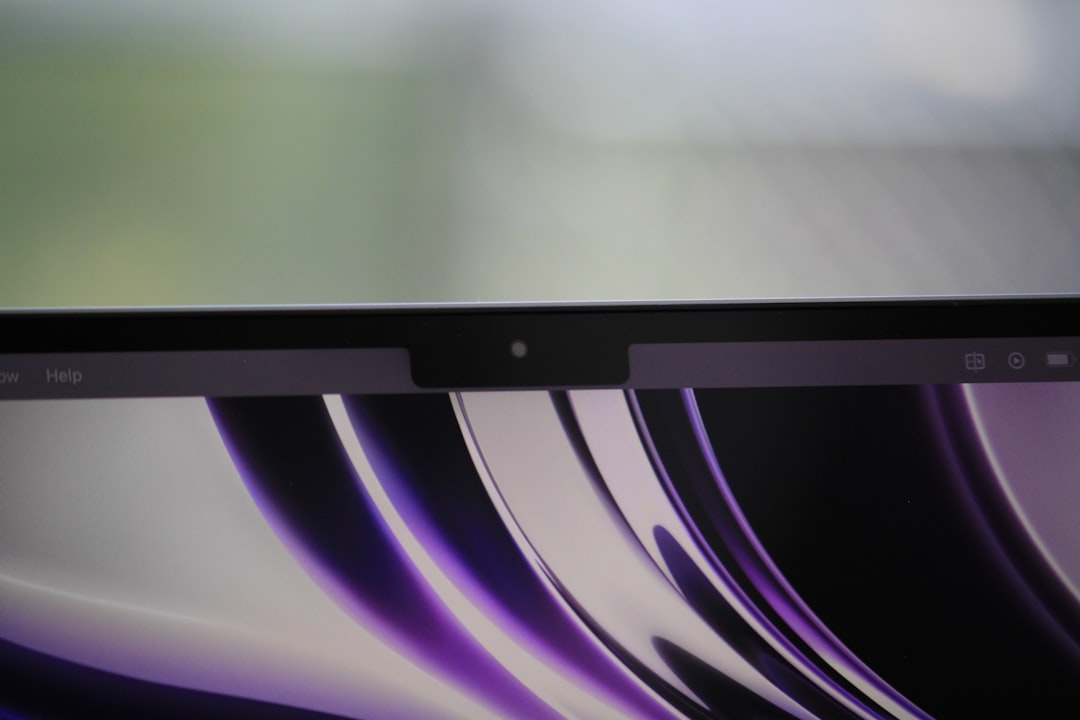
If you are using an external webcam, physical connection issues may be the cause.
Hardware Checklist
- Reconnect the USB cable securely.
- Try a different USB port.
- Check the cable for visible damage.
- Test the webcam on another computer.
If the camera fails on multiple devices, it may be defective and require replacement.
10. Adjust Operating System Privacy Settings
Modern systems have built-in privacy controls that can override browser permissions.
Windows Camera Privacy Settings
- Go to Settings → Privacy → Camera.
- Ensure camera access is enabled for the device.
- Scroll down and confirm browser access is allowed.
Mac Camera Privacy Settings
- Open System Settings.
- Select Privacy & Security.
- Click Camera.
- Verify your browser is enabled.
If access is disabled at the system level, Bazoocam will not be able to detect the webcam regardless of browser settings.
When the Problem May Be on Bazoocam’s End
Occasionally, the issue is not on your device. Server outages or maintenance can temporarily disrupt connections.
Indicators the issue may be platform-side:
- The site loads slowly or not at all.
- You receive server error messages.
- Other users report issues simultaneously.
In such cases, waiting and checking again later is often the only solution.
Preventing Future Camera Issues
Maintaining consistent performance requires simple preventive measures:
- Keep your operating system updated.
- Regularly update browser versions.
- Avoid installing unnecessary extensions.
- Run periodic malware scans.
- Use reliable antivirus software with correctly configured permissions.
Additionally, always close video applications properly rather than simply minimizing them.
Final Thoughts
A non-functioning webcam on Bazoocam can feel disruptive, but the root cause is usually minor and easily corrected. Most connection problems stem from browser permissions, competing software, outdated drivers, or unstable internet connections. By methodically following the steps outlined above, you can identify the source of the issue and restore full camera functionality in a structured and secure manner.
If problems persist even after completing all troubleshooting steps, consider testing a different device or consulting technical support. In the vast majority of cases, however, these solutions will resolve the issue quickly and allow you to return to uninterrupted video chat sessions.
Reliable troubleshooting begins with simple checks. Start with permissions, move to drivers and connectivity, and only then consider hardware replacement. Taking a systematic approach ensures that your Bazoocam experience remains smooth, secure, and dependable.