
Extracting text from images used to require specialized software and technical know-how. Today, with Google Lens OCR features, anyone can quickly turn printed or handwritten text from photos into editable, searchable content in seconds. Whether someone is working from a smartphone, tablet, or desktop, Google Lens offers a simple and highly accurate way to capture text from books, documents, signs, and screenshots.
TLDR: Google Lens allows users to extract text from images using built-in OCR (Optical Character Recognition) technology. By opening Google Lens through the app, Google Photos, or a browser, users can scan an image and instantly copy, translate, or search the detected text. It works on printed and many handwritten materials. The process is fast, free, and requires minimal setup.
What Is Google Lens OCR?
OCR, or Optical Character Recognition, is technology that identifies text within images and converts it into machine-readable text. Google Lens integrates this technology into a user-friendly interface that works across multiple devices.
Instead of manually typing out notes from a textbook or re-creating text from a printed document, users can simply scan the content and extract it digitally. Google Lens can:
- Copy text from photos
- Translate text in real time
- Search text instantly on Google
- Send text from a phone to a computer
This makes it particularly useful for students, researchers, office workers, and anyone dealing with printed documents.
Where Google Lens Can Be Used
One of the advantages of Google Lens is its availability across platforms. Users can access it in several ways:
- Google Lens App (Android devices)
- Google App (iOS and Android)
- Google Photos
- Google Chrome browser (desktop)
This flexibility ensures that text extraction can happen whether a user is on a phone, tablet, or computer.
How To Extract Text Using Google Lens on a Smartphone
For most people, smartphones are the fastest way to use Google Lens OCR features.
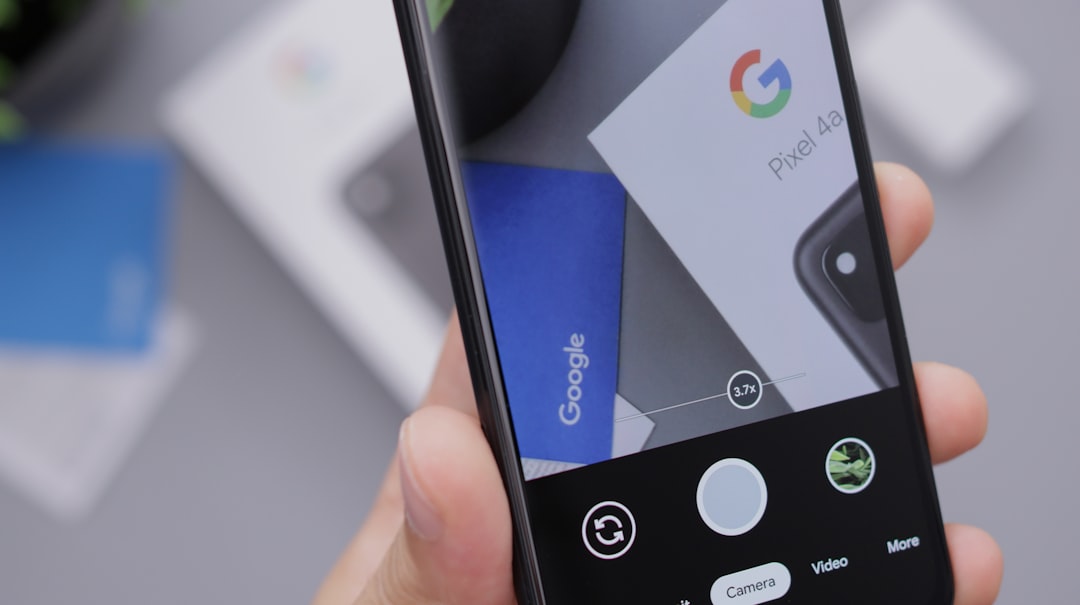
Step 1: Open Google Lens
Users can open Google Lens through the standalone app (Android) or via the Google app. In some devices, Lens is integrated directly into the camera.
Step 2: Capture or Upload an Image
Point the camera at the text or select an existing image from the gallery. Google Lens automatically scans the image for recognizable text.
Step 3: Select the Text
Once text is detected, Lens highlights selectable portions. Users can tap and drag to select specific words, paragraphs, or the entire document.
Step 4: Choose an Action
After selecting text, options appear such as:
- Copy text
- Translate
- Listen
- Search
- Copy to computer
The copied text can then be pasted into email, documents, or messaging apps.
How To Extract Text Using Google Lens on Desktop
Desktop users can also take advantage of Google Lens through Google Chrome.
Method 1: Using an Online Image
- Right-click an image in Chrome.
- Select Search image with Google Lens.
- When the Lens panel opens, choose Text.
- Select and copy the detected text.
Method 2: Using Uploaded Images
- Go to Google Images.
- Click the camera icon.
- Upload an image.
- Use the Lens interface to extract text.
This approach is particularly helpful when working with scanned documents, screenshots, or downloaded images.
Best Practices for Accurate Text Extraction
Although Google Lens OCR is powerful, accuracy depends on image quality. To achieve the best results, users should follow these guidelines:
- Ensure good lighting to avoid shadows.
- Keep the camera steady to prevent blur.
- Align the text properly within the frame.
- Use high-resolution images when possible.
- Avoid obstructed text, such as folds or glare.
Printed text is generally recognized more accurately than handwritten text. However, clear handwriting can still be captured effectively.
Using Google Lens for Handwritten Notes
Many students and professionals rely on handwritten notes. Google Lens can often interpret legible handwriting, though results vary depending on writing style.

To improve recognition:
- Write clearly with consistent spacing.
- Avoid decorative or cursive-heavy styles.
- Use dark ink on light paper.
When handwriting is neat, Google Lens can convert entire notebooks into editable digital text within minutes.
Translating Text Instantly
Another powerful capability of Google Lens OCR is real-time translation. Users traveling abroad can point their camera at menus, signs, or documents and see translated text overlaid on the original image.
This feature is useful for:
- Travelers navigating foreign countries
- Students reading foreign-language textbooks
- Professionals reviewing international documents
The translation function works directly within the Lens interface, reducing the need to copy and paste into separate tools.
Sending Extracted Text from Phone to Computer
Google Lens makes cross-device productivity seamless. When logged into the same Google account on both phone and desktop, users can select Copy to computer. The selected text appears instantly on the chosen device, ready to paste.
This feature eliminates manual emailing or transferring documents.
Common Use Cases
Google Lens OCR helps in a variety of everyday scenarios:
- Digitizing printed documents
- Capturing whiteboard notes
- Extracting contact information from business cards
- Saving quotes from books
- Turning screenshots into editable text
Its speed and ease of use make it a valuable productivity tool for both personal and professional settings.
Limitations to Be Aware Of
While Google Lens OCR is highly capable, users should understand its limitations:
- Very stylized fonts may reduce accuracy.
- Low-light images can cause misreads.
- Heavily cluttered backgrounds may confuse text detection.
- Extremely poor handwriting might not be recognized correctly.
When precision is critical, users should proofread extracted content before relying on it.
Privacy Considerations
Since Google Lens processes images through Google’s systems, users handling sensitive documents should review their privacy settings. Avoid scanning confidential documents on shared or public devices.
For everyday materials like notes, articles, or menus, the tool is generally safe and widely used.
Why Google Lens Stands Out
There are many OCR tools available, but Google Lens stands out for three key reasons:
- Accessibility – Built into devices many people already own.
- Ease of Use – Minimal setup and intuitive controls.
- Integration – Seamless connection with Google services.
Its combination of convenience and advanced text recognition makes it one of the easiest ways to extract text from images.
Frequently Asked Questions (FAQ)
1. Is Google Lens free to use?
Yes, Google Lens is completely free. It is available through the Google app, Google Photos, and Chrome browser at no cost.
2. Can Google Lens extract text from handwritten notes?
Yes, it can recognize many types of handwriting. Results depend on clarity and legibility. Neat, printed handwriting produces the best outcomes.
3. Does Google Lens work offline?
Some limited functionality may work offline, but text recognition and translation typically require an internet connection for optimal accuracy.
4. Can extracted text be edited?
Once copied, the text can be pasted into any document editor, email, or note-taking app and edited normally.
5. How accurate is Google Lens OCR?
For clear printed text, accuracy is typically very high. Minor errors may occur with unusual fonts, low-resolution images, or messy handwriting.
6. Is Google Lens available on iPhone?
Yes, iPhone users can access Google Lens through the Google app or Google Photos app.
7. Can it scan long documents?
Yes, multiple pages can be scanned individually. For large documents, users may need to capture and process pages one at a time.
8. Is it safe to use for business documents?
It is generally safe, but users handling sensitive information should consider privacy policies and avoid public or shared devices.
With its powerful OCR technology, user-friendly design, and seamless integration across devices, Google Lens offers a practical solution for extracting text from images quickly and efficiently. Whether digitizing notes, translating foreign text, or copying quotes from books, it transforms everyday photos into editable content with just a few taps.