
Dropbox is one of those apps you do not think about… until it refuses to install. Then it becomes very important. Very fast. If you are staring at an error message, a frozen progress bar, or a button that does nothing, you are not alone. The good news? Most Dropbox install problems are easy to fix. You just need the right steps.
TLDR: If Dropbox won’t install, check your internet connection, storage space, and system requirements first. Restart your device and download the correct version from the official Dropbox website. Disable antivirus temporarily if needed. Most problems are fixed in under 15 minutes with simple troubleshooting.
First, Why Won’t Dropbox Install?
Before jumping into fixes, let’s talk about why this happens.
Here are the most common reasons:
- Not enough storage space
- Old operating system
- Slow or unstable internet
- Security software blocking installation
- Corrupted installer file
- Permission issues on your device
The fix depends on your device. So let’s break it down step by step.
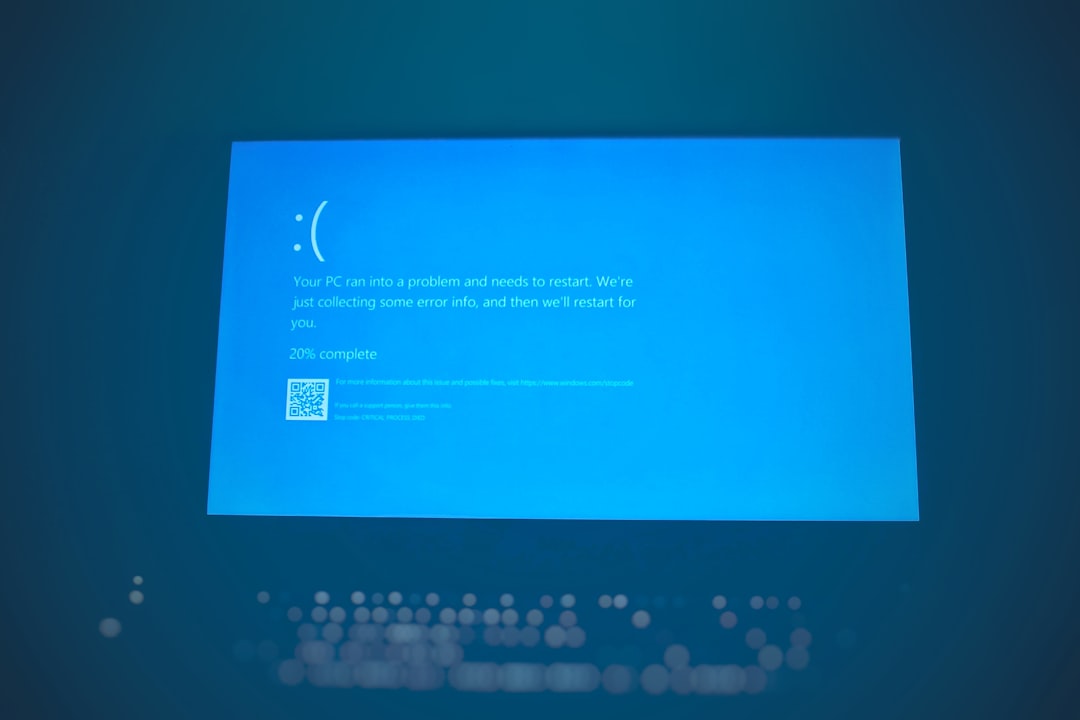
Fixing Dropbox Installation on Windows
Windows users run into this the most. Don’t worry. It’s usually simple.
Step 1: Check System Requirements
Make sure your PC meets Dropbox minimum requirements:
- Windows 10 or newer
- Administrator account access
- Enough free disk space (at least 500 MB)
If you are using Windows 7 or 8, Dropbox may not install properly. Updating Windows often fixes everything.
Step 2: Restart Your Computer
Yes. The classic fix.
Restarting clears temporary system glitches. Try installing again after rebooting.
Step 3: Download the Correct Installer
Do not use third-party websites.
Go directly to dropbox.com and download the latest version. Old installer files often fail.
If the installer downloaded before and failed, delete it. Then download a fresh copy.
Step 4: Run as Administrator
This is very important.
- Right-click the Dropbox installer file.
- Select Run as Administrator.
- Click Yes if prompted.
This gives Dropbox proper permissions.
Step 5: Temporarily Disable Antivirus
Security software sometimes blocks Dropbox.
Temporarily turn off:
- Antivirus software
- Firewall protection
- VPN
Install Dropbox again. If it works, add Dropbox as an exception in your antivirus settings.
Step 6: Clear Temp Files
Corrupted temporary files can block installs.
- Press Windows + R
- Type %temp%
- Delete all files in that folder
Then try again.
Fixing Dropbox Installation on Mac
Mac users have fewer issues. But when it happens, it can be confusing.
Step 1: Check macOS Version
Dropbox requires a recent macOS version.
Go to:
Apple Menu → About This Mac
If your system is outdated, update macOS first.
Step 2: Allow App Permissions
Sometimes macOS blocks Dropbox.
Go to:
System Settings → Privacy & Security
Look for blocked apps and allow Dropbox.
Step 3: Fix “Dropbox Is Damaged” Error
If you see this message, the installer file may be corrupted.
Fix it by:
- Deleting the installer
- Emptying Trash
- Re-downloading from the official website
Still not working? Try this:
- Open Terminal
- Type: xattr -cr /Applications/Dropbox.app
- Press Enter
This removes security flags blocking the app.
Step 4: Check Available Storage
Mac needs space to unpack installer files.
Go to:
Apple Menu → About This Mac → Storage
If your storage is almost full, delete unused files and try again.
Step 5: Safe Mode Install
If nothing works, boot into Safe Mode:
- Shut down your Mac
- Hold Shift while turning it on
- Log in
Then try installing Dropbox.
Fixing Dropbox Installation on Android
Mobile issues are different. Usually quicker to fix.
Image not found in postmetaStep 1: Check Google Play Store Errors
If you see “App can’t be installed,” try this:
- Restart your phone
- Check internet connection
- Make sure you have enough storage
Step 2: Clear Google Play Cache
- Go to Settings
- Tap Apps
- Select Google Play Store
- Tap Storage
- Choose Clear Cache
Try installing Dropbox again.
Step 3: Update Android System
Some app versions require newer Android versions.
Go to:
Settings → Software Update
Install updates if available.
Step 4: Install APK (Advanced Users)
If the Play Store fails, you can manually install the Dropbox APK.
Only download from trusted sources. This is important.
Enable Install Unknown Apps temporarily. Then install the file.
Fixing Dropbox Installation on iPhone or iPad
Apple devices are strict. But predictable.
Step 1: Check iOS Version
Older iOS versions may not support newer Dropbox releases.
Go to:
Settings → General → Software Update
Step 2: Free Up Storage
If your storage is full, apps will not install.
Go to:
Settings → General → iPhone Storage
Delete unused apps or large videos.
Step 3: Sign Out of App Store
This refreshes your Apple ID connection.
- Open Settings
- Tap your name
- Select Media & Purchases
- Sign out and sign back in
Then install Dropbox again.
Common Error Messages and What They Mean
Let’s decode a few scary-looking errors.
- “Installation Failed” – Usually permissions or antivirus issue.
- “Not Enough Disk Space” – Free up storage.
- “Installer Package Error” – Redownload installer.
- “App Not Compatible” – Update your operating system.
Most error messages are simpler than they sound.
When Nothing Works
Still stuck? Try these advanced fixes:
- Create a new user account and try installing there.
- Run system file checker (Windows: sfc /scannow).
- Reset network settings.
- Contact Dropbox Support.
Also check the Dropbox status page. Sometimes the issue is not your device. It is their server.
Pro Tips to Avoid Installation Issues
Want fewer headaches next time? Follow these tips:
- Keep your operating system updated.
- Do not install from unofficial websites.
- Maintain at least 10% free storage space.
- Restart your device regularly.
- Keep security software updated, not over-aggressive.
Small habits make a big difference.
Final Thoughts
Dropbox not installing can feel frustrating. But it is rarely serious. Most problems come down to storage, permissions, or outdated software.
Start simple. Restart. Update. Redownload.
Work through the steps slowly. One at a time.
In most cases, Dropbox will be up and running before you finish your coffee.
And if not? Now you know exactly what to do.