
Use CloudConvert if you want more control over AMR to MP3 settings; use Convertio if you want the quickest no-fuss conversion. AMR is a speech-focused audio format often used for voice recordings on mobile devices, especially where small file size matters more than music quality [source: Library of Congress]. MP3 is the safer choice when you need playback in browsers, media players, editing apps, or client review systems.
TLDR: CloudConvert is better for users who need bitrate, codec, trimming, and audio setting control. Convertio is better when you just need to upload an AMR file and get an MP3 back in a minute or two. For example, if you have 20 short call recordings at 300 KB each, Convertio is usually faster to process manually, while CloudConvert is better if all 20 files need the same 128 kbps MP3 output. If privacy matters, neither web tool is ideal for sensitive legal, medical, or HR recordings.
CloudConvert vs. Convertio: the quick verdict
Both CloudConvert and Convertio can convert AMR to MP3 in a browser. You do not need to install software. You upload the AMR file, choose MP3 as the output, start the conversion, and download the finished file.
The real difference is control. CloudConvert feels more professional. It gives clearer conversion options and is better suited to repeat work. Convertio feels simpler. It is easy to understand, but it gives you less room to fine-tune the final audio.
If this is a one-time job, Convertio is hard to complain about. If you convert voice files often, CloudConvert is the stronger choice.
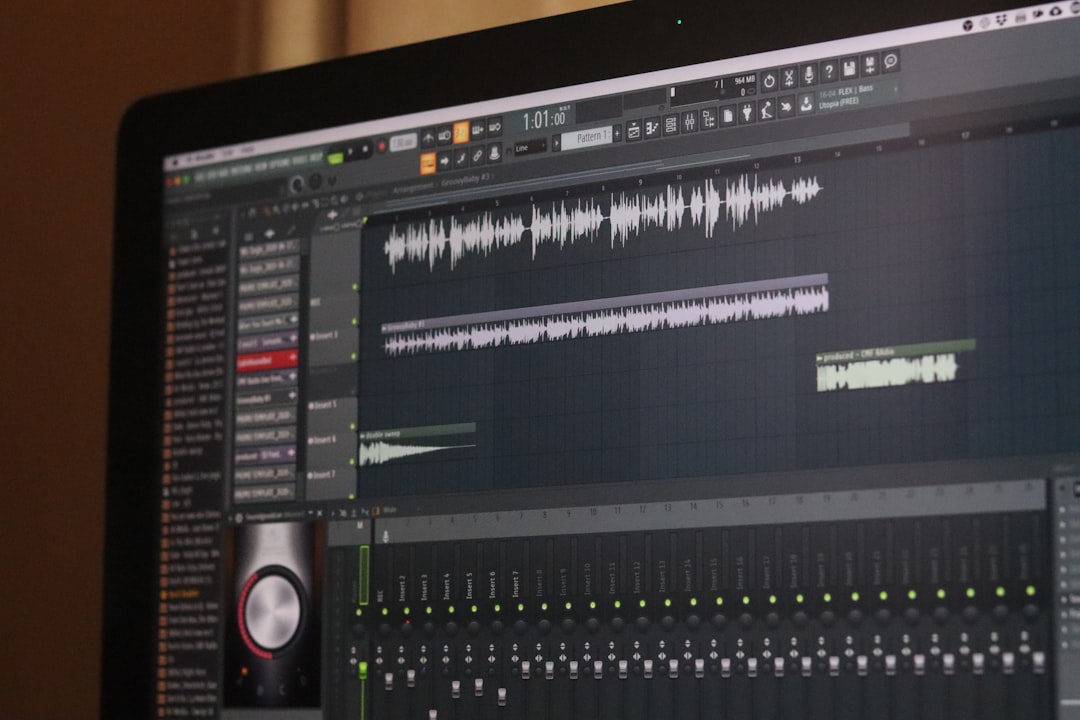
What happens when you convert AMR to MP3?
AMR files are usually voice recordings. They are efficient, but they are not always convenient. Some apps refuse to open them. Some editing tools import them badly. Some email preview systems ignore them completely. MP3 fixes most of that.
Still, conversion does not improve the original recording. A noisy AMR file will still sound noisy as an MP3. A low-bitrate AMR voice memo will not turn into studio audio. The goal is compatibility, not magic.
For spoken voice, avoid oversized MP3 settings. A 64 kbps or 96 kbps MP3 is often enough for speech. Use 128 kbps if the recording is clearer or you plan to edit it later. Using 320 kbps for a tiny AMR voice note usually just creates a bloated file with no real gain.
How to convert AMR to MP3 with CloudConvert
- Open CloudConvert in your browser.
- Select AMR as the input format if it is not detected automatically.
- Choose MP3 as the output format.
- Click the settings icon if you want to adjust audio options.
- Set bitrate, sample rate, channels, or trimming if needed.
- Start the conversion.
- Download the MP3 file when processing is complete.
CloudConvert is strongest when you care about consistency. For example, you may want every exported file to be mono, 128 kbps, and trimmed at the start. That matters for call archives, interview clips, podcasts, and transcription workflows.
The interface is also better for batch conversion. You can queue multiple files and apply output settings with less guesswork. It feels built for people who have to do this more than once.
Best CloudConvert settings for AMR voice files:
- Codec: MP3
- Bitrate: 64 kbps for basic speech, 128 kbps for cleaner recordings
- Channels: Mono for most voice recordings
- Sample rate: Keep original when possible
- Trim: Use only if you need to remove silence or mistakes
The minor annoyance is that CloudConvert can feel a touch heavier than it needs to for a single tiny file. Expect to spend a few seconds more checking settings, especially if all you wanted was one quick export.
How to convert AMR to MP3 with Convertio
- Open Convertio in your browser.
- Upload your AMR file from your device, cloud storage, or URL if supported.
- Choose MP3 as the output format.
- Click Convert.
- Download the converted MP3 file.
Convertio is good because it asks fewer questions. The main process is obvious. Upload, convert, download. That is it.
It drives me crazy that simple converters sometimes hide useful settings behind tiny icons or unclear labels. Convertio is better than many tools in that respect, but it is still not as comfortable as CloudConvert when you need repeatable output settings.
Convertio is a solid choice for casual use. It works well for one-off AMR files from messaging apps, old mobile recordings, or basic voice notes. If your main question is “Can I open this recording in a normal player?” Convertio is probably enough.

CloudConvert advantages
- More output control: Better access to bitrate, sample rate, channels, and trimming.
- Better for batch jobs: Easier to keep output settings consistent across many files.
- Cleaner workflow for professionals: Useful for editors, transcription teams, researchers, and support teams.
- API support: Helpful if AMR to MP3 conversion needs to be part of a larger system.
Choose CloudConvert when quality control matters. It is also the safer pick if bad settings would cost time later. For example, a transcription team may prefer standard mono MP3 exports because they are smaller and easier to manage.
Convertio advantages
- Very simple workflow: Good for people who do not want to touch audio settings.
- Fast for single files: Uploading one AMR and downloading one MP3 is straightforward.
- Friendly interface: The format selection is easy to understand.
- Good for casual use: Suitable for personal recordings and quick sharing.
Choose Convertio when speed matters more than control. It is the better option when someone sends you an AMR file and you just need a playable MP3 without learning audio settings.
Privacy and file safety
This part deserves care. Any browser-based converter requires you to upload your audio. That may be fine for a personal voice memo. It may not be fine for client calls, court evidence, patient notes, staff interviews, or private family recordings.
Before uploading, ask three questions:
- Does the recording contain names, addresses, account numbers, or health details?
- Would there be a problem if the file were stored longer than expected?
- Do company rules allow third-party file conversion?
If the answer worries you, use offline software instead. Audacity with FFmpeg support, VLC, or a trusted desktop media converter may be a better fit. It is less convenient, but the file stays on your machine.
Which tool gives better audio quality?
For most AMR files, the quality difference between CloudConvert and Convertio will be small. The original AMR file is the limit. If the source is narrowband speech, both tools can only preserve what is already there.
CloudConvert wins if you know which settings to use. It lets you avoid silly output choices, such as stereo MP3 for a mono phone recording. Convertio wins if default settings are good enough and you do not want to think about it.
For voice, the best practical setup is usually mono MP3 at 64 to 128 kbps. That keeps the file small while preserving enough clarity for listening, sharing, and transcription.
Final recommendation
Pick CloudConvert for control, batch work, and repeatable settings. It is the better tool for professional or semi-professional AMR to MP3 conversion. It gives you more say over the final file and reduces the chance of messy output.
Pick Convertio for speed and simplicity. It is ideal when you have one AMR file, no special requirements, and no patience for settings. For casual users, that is often the whole job.
If the recording is sensitive, skip both and convert offline. If it is not sensitive, either service can produce a usable MP3. The smarter choice depends on whether you value control or convenience.