
Use Ezgif if you want the fastest free way to stitch GIFs side by side, and use Kapwing if you need captions, branding cleanup, sizing presets, or a more polished social video export. Side by side GIF stitching is usually a simple horizontal merge, but the tool choice affects file size, timing, quality, and how much control you get. GIF is an old format, first released in 1987, and it still has strict limits around color and compression compared with modern video formats [source: Library of Congress]. That is why a 6 second stitched GIF can suddenly become 20 MB or more if you are not careful.
TLDR: For quick side by side GIF stitching, Ezgif is usually faster: upload two GIFs, use the GIF maker or effects tools, align them horizontally, then export. Kapwing is better for presentation, especially if you need text, a 1:1 canvas, subtitles, or a cleaner layout for TikTok, YouTube Shorts, or Instagram. For example, a marketer comparing “before and after” product demos could finish a raw Ezgif merge in about 2 minutes, while spending 6 to 10 minutes in Kapwing to add labels, trim timing, and export a branded version.
What “stitch GIFs side by side” actually means
Stitching GIFs side by side means placing two or more animated GIFs on one shared canvas. They play at the same time, usually left to right. This is useful for comparisons, reactions, tutorials, product demos, fitness form checks, UI tests, animation reviews, and meme formats.
The hard part is not placing the files next to each other. The hard part is getting them to:
- Start at the same moment
- Loop cleanly
- Match in height or width
- Keep text readable
- Stay under upload size limits
- Avoid ugly frame skipping
If one GIF is 3 seconds and the other is 7 seconds, the merged result may feel broken. If one is 480 pixels tall and the other is 720 pixels tall, the layout may look sloppy. Fix those issues before export, not after.
Ezgif: best for speed and simple control
Ezgif is the practical choice when you want a browser based tool with no login friction. It looks plain, but that is part of the appeal. You upload files, adjust settings, preview, optimize, and download. No heavy editor. No project dashboard. No artificial sense of ceremony.
For side by side GIFs, Ezgif usually works best when you prepare both files first. Resize them to the same height. Trim them to similar duration. Then combine them using the GIF maker or related editing tools. In many cases, you can create a horizontal layout by stacking frames on a wider canvas or using combine options, depending on the source files and workflow.
Basic Ezgif workflow
- Open Ezgif in your browser.
- Upload the first GIF and check its width, height, frame count, and duration.
- Resize or crop it if needed.
- Repeat the same cleanup for the second GIF.
- Create a canvas wide enough for both GIFs.
- Place them side by side and preview the animation.
- Optimize the final GIF before downloading.
The catch is that Ezgif can feel oddly manual. You may need to bounce between resize, crop, optimize, and GIF maker pages. It works, but it can take a few extra clicks. If the GIFs have different frame rates, expect to test several outputs before it looks right.
Ezgif is strong when output size matters. Its optimizer gives practical controls, such as lossy compression, frame reduction, color reduction, and resize options. That helps when a stitched GIF becomes too large for email, Slack, Discord, or a CMS upload field.
Kapwing: best for visual layout and social content
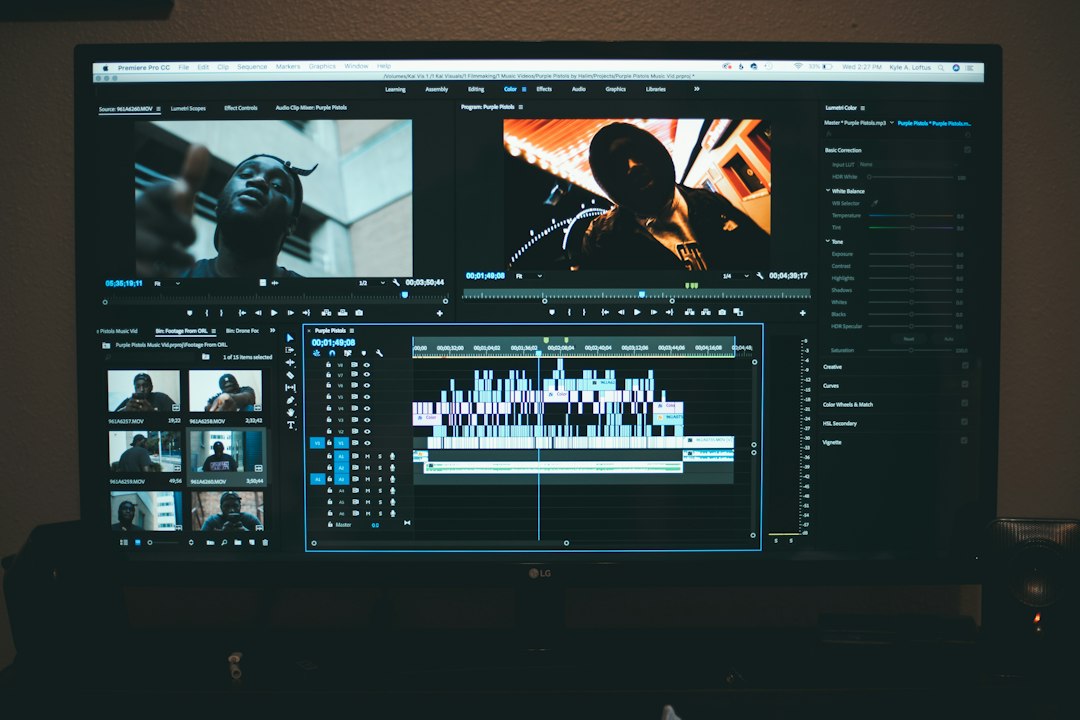
Kapwing feels more like a modern video editor. Instead of thinking in raw GIF frames, you work on a canvas. You can drag two GIFs onto the workspace, place them side by side, resize them visually, add labels, set a background color, and export the result.
This matters when the final asset is meant to be seen by customers, followers, or a team lead who will notice poor spacing. Kapwing is not just stitching. It is layout, text, timing, and export in one place.
Basic Kapwing workflow
- Start a new project.
- Upload both GIFs.
- Choose a canvas size, such as square, vertical, or widescreen.
- Drag each GIF into position.
- Match their height and align their edges.
- Trim clips so both start and end cleanly.
- Add text labels if needed.
- Export as GIF or video.
Kapwing is easier for beginners because you can see the layout while editing. If you want “Old version” on the left and “New version” on the right, it takes seconds. It also handles common social formats better than Ezgif.
Honestly, it feels like Kapwing saves time until export settings enter the room. Depending on the account type, file length, resolution, watermark rules, and export format, the final step may not be as simple as expected. Always check the export preview before sending the file to a client or posting it publicly.
Ezgif vs. Kapwing: quick comparison
| Feature | Ezgif | Kapwing |
|---|---|---|
| Best use | Fast utility work | Designed social content |
| Ease of layout | Basic and manual | Visual drag and drop |
| Text and labels | Possible, but limited | Strong and simple |
| Compression control | Very useful | More export focused |
| Speed for simple jobs | Usually faster | Usually slower |
| Best final format | GIF | GIF or MP4 |
Which one gives better quality?
Neither tool can fully escape GIF limitations. GIFs use a limited color palette, so gradients, shadows, and fast motion can look rough. If your stitched animation contains screen recordings, UI demos, or camera footage, consider exporting as MP4 instead of GIF. It will often look sharper and weigh less.
Ezgif gives better hands on control over compression. You can reduce colors, drop frames, and resize until the file is acceptable. Kapwing gives better visual control over the composition. The actual best quality depends on what you mean by quality: smaller file, cleaner layout, sharper text, or smoother motion.
Practical tips before you stitch
- Match heights first. Two GIFs with the same height are easier to align.
- Trim dead time. Remove blank starts, countdowns, and frozen endings.
- Use short loops. Aim for 3 to 8 seconds when possible.
- Add labels sparingly. “Before” and “After” are often enough.
- Keep contrast high. Tiny text fails quickly in compressed GIFs.
- Export twice. Save one high quality master and one compressed sharing version.
If both GIFs have different lengths, decide whether they should loop independently or end together. For a comparison, ending together usually looks more professional. For reaction content, independent looping may be fine.
Recommended choice
Choose Ezgif when the job is simple, private, technical, or file size sensitive. It is ideal for developers, support teams, bloggers, and anyone who just needs two animated examples next to each other without decorative extras.
Choose Kapwing when the stitched GIF needs to look polished. It is better for social posts, client updates, marketing comparisons, education content, and branded explainers. The visual editor reduces guesswork, especially when adding text or fitting the result into a specific aspect ratio.
The safest workflow is often mixed. Use Ezgif to trim, resize, and compress the source GIFs. Then use Kapwing if you need design polish. If you only need a clean horizontal merge, skip the extra editor and stay with Ezgif. You will save time, clicks, and probably a little irritation too.