
Choose Descript if you want to edit the video by editing the transcript; choose VEED if you want quick browser-based subtitles for an MP4. Both can turn spoken audio into text, clean up captions, and export subtitle files, but they feel built for different workflows. MP4 is also one of the standard video formats accepted by major platforms such as YouTube, so transcribing it before publishing can save time on captions, search, and repurposing [source: YouTube].
TLDR: Descript is best for podcasters, educators, and teams that want to cut video by deleting words from a transcript. VEED is better for creators who need subtitles, social clips, translations, and simple edits in a web browser. For example, a 12-minute webinar could become captions, a blog outline, and three short clips in about one editing session instead of two or three separate tasks. If your main goal is accurate text plus deep editing, pick Descript; if your main goal is fast captions plus export-ready video, pick VEED.
What “transcribing an MP4” actually means
Transcribing an MP4 means converting the spoken audio inside the video into written text. That text can become a plain transcript, subtitles, closed captions, timestamps, social media captions, or searchable notes.
The basic process is simple:
- Upload your MP4 to the tool.
- Run automatic transcription using speech recognition.
- Review and correct the text, especially names and technical terms.
- Add speaker labels if more than one person talks.
- Export as TXT, SRT, VTT, DOCX, or a subtitled video.
The annoying part is not the upload. It is the cleanup. Honestly, it feels like every AI transcription tool still has a personal grudge against brand names, acronyms, and people speaking over each other.
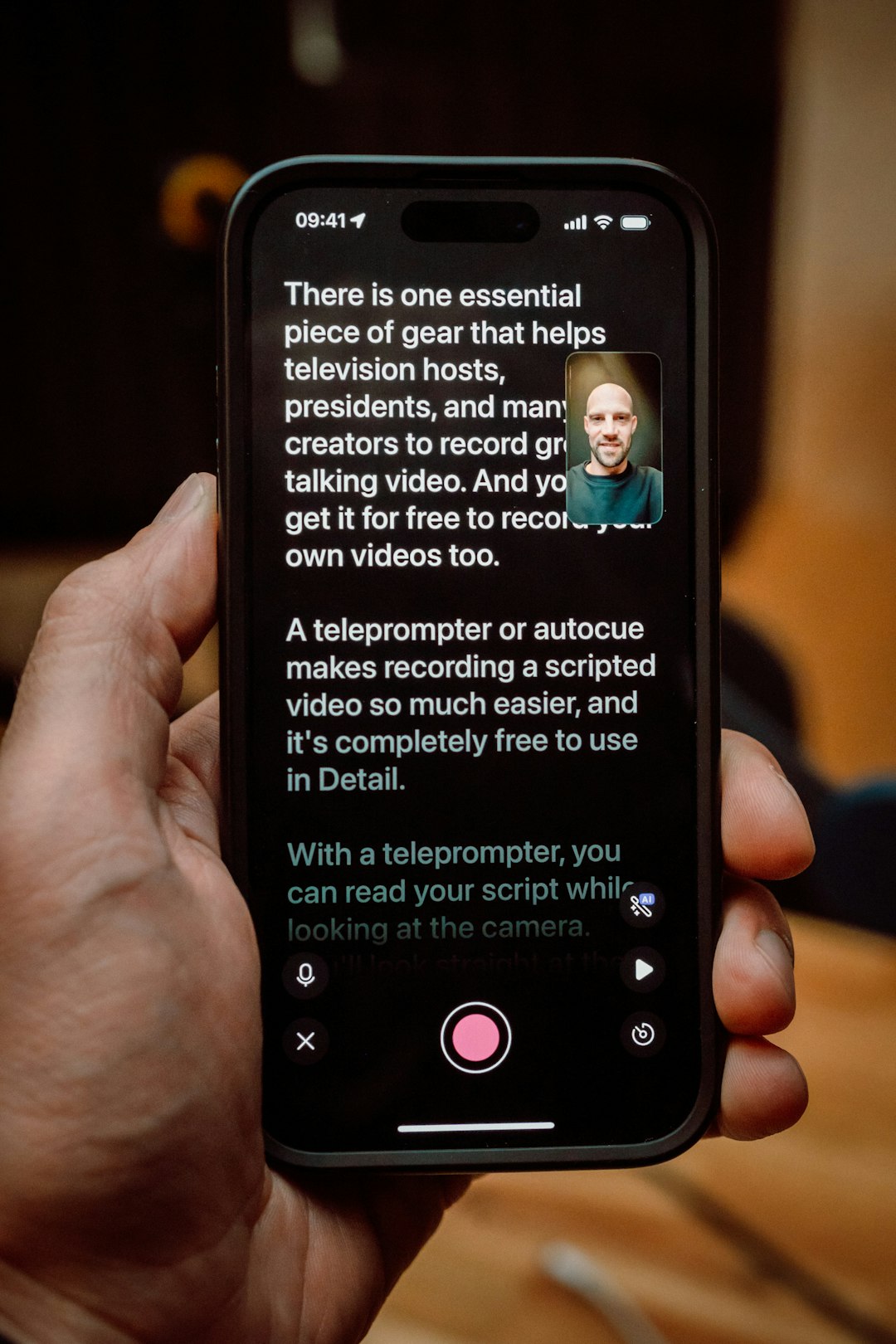
How to transcribe an MP4 in Descript
Descript treats your video like a document. Once the MP4 is transcribed, you can edit the video by editing the text. Delete a sentence from the transcript, and that part disappears from the video. This is the feature that makes Descript stand out.
Here is the usual workflow:
- Open Descript and create a new project.
- Drag your MP4 into the project window.
- Choose transcription settings and language.
- Wait for the transcript to generate.
- Correct mistakes in the text editor.
- Add speaker names if needed.
- Export the transcript, subtitles, or edited video.
Descript is especially strong when the transcript is not the final product. If you are turning a long interview into a polished YouTube video, online course, or podcast clip, the text-based editor is a huge time saver. You can remove filler words, cut tangents, and tighten awkward pauses without scrubbing through a timeline every few seconds.
The catch is that Descript can feel a little heavier than a simple caption tool. If all you need is an SRT file for a two-minute MP4, opening a full editing workspace may feel like using a studio mixer to adjust a doorbell. It works, but it may be more than you need.
How to transcribe an MP4 in VEED
VEED is more direct. It runs in the browser, and its workflow is built around uploading a video, generating subtitles, editing them, styling them, and exporting. For social videos, that is often enough.
Here is the usual VEED workflow:
- Go to VEED and upload your MP4.
- Open the subtitles or transcription tool.
- Select automatic subtitles or auto transcription.
- Edit the text line by line.
- Change subtitle style, size, position, and color.
- Export the subtitled video or download a caption file.
VEED is a strong pick for TikTok, Instagram Reels, YouTube Shorts, training clips, and marketing videos. You can burn captions into the video, add branding, resize for social platforms, and make quick visual changes in the same workspace.
Expect to waste time on small corrections if your audio is messy. Background music, soft speakers, and heavy accents can lead to odd subtitle breaks. That is not unique to VEED, but it is more visible when captions are the main output.

Descript vs. VEED: which is more accurate?
Accuracy depends less on the tool and more on the audio. A clean MP4 with one speaker, a good microphone, and little background noise will usually transcribe well in both. A panel discussion recorded in a large room will need more edits.
Descript tends to feel better for careful transcript review. The text editor is built for reading and revising longer content. If you have a 45-minute interview, Descript makes it easier to scan the full conversation, fix repeated errors, and mark speakers.
VEED is better when accuracy is tied to subtitle timing. You see the captions in the video frame right away. That helps when you care about where a caption appears, how long it stays on screen, and whether it blocks a face or product demo.
Editing experience: text document vs. visual video tool
This is the biggest difference.
Descript is transcript-first. You work with words, scenes, speakers, and edits. It is great when the video is built around speech. Think podcasts, expert interviews, tutorials, sales calls, and webinars.
VEED is video-first. You work with captions, layout, templates, audio, visuals, and exports. It is great when the final video needs to look polished for social media or a public webpage.
If your MP4 is one hour long, Descript is often the calmer place to work. If your MP4 is 60 seconds long and needs bold subtitles in brand colors, VEED feels faster.
Export options and file formats
Both tools usually support common transcript and subtitle exports. Look for these:
- TXT: best for plain transcripts and notes.
- SRT: best for subtitles on YouTube, Vimeo, and many video platforms.
- VTT: useful for web video captions.
- MP4 with burned-in captions: best for social posts where captions must always show.
Descript is useful when you need both a transcript and an edited video project. VEED is useful when you need a finished video with styled captions baked in.
When Descript is the better choice
- You edit long videos, podcasts, or interviews.
- You want to cut video by deleting transcript text.
- You need speaker labels and readable transcripts.
- You repurpose recordings into clips, notes, and articles.
- You care more about editing speech than designing captions.
Descript is also a good fit for teams that review content. Editors, hosts, and producers can work from the transcript instead of sending vague notes like “cut the bit around 18 minutes.” That alone can prevent a lot of back-and-forth.
When VEED is the better choice
- You need subtitles quickly.
- You create short social videos.
- You want to style captions visually.
- You prefer browser-based editing.
- You need simple resizing, trimming, or branding tools.
VEED is easier to recommend for creators who think in finished posts. If the goal is “upload an MP4, add captions, export for Instagram,” it keeps the job simple.

Practical recommendation
Use Descript for transcription-heavy work. It is the better pick when the transcript is central to your editing process. It suits long-form content, interviews, online courses, podcast videos, and business recordings.
Use VEED for caption-heavy work. It is the better pick when speed, visual subtitles, social formatting, and simple browser editing matter most.
If you are still unsure, use the length of your MP4 as a quick rule. For videos under five minutes, VEED will often feel faster. For anything over 20 minutes, Descript will usually give you more control and less timeline fatigue.
The best tool is the one that matches the job after transcription. If you need clean words and deep edits, pick Descript. If you need good-looking captions and a finished MP4, pick VEED.