
For project management beginners, learning how to use Jira can feel overwhelming at first. However, creating a Jira board with sample data is one of the easiest ways to understand how work flows through a project. By experimenting in a safe, practice environment, beginners can explore features, test workflows, and gain confidence without affecting real projects. This guide explains step by step how to create a Jira board and populate it with sample data to start managing tasks effectively.
TLDR: Creating a Jira board with sample data helps beginners understand project workflows without risking real project data. Start by creating a project, choose a suitable board type, configure columns, and then add sample issues such as tasks, bugs, and stories. Organize these issues into sprints or workflow stages to simulate real project progress. Practicing this way builds confidence and improves project management skills quickly.
Why Beginners Should Start With Sample Data
Before diving into an active project, beginners benefit from building a practice board. Using sample data allows them to:
- Understand workflows without disrupting live work.
- Learn the difference between issue types like stories, tasks, and bugs.
- Experiment with statuses, sprints, and backlogs.
- Make mistakes safely and adjust configurations freely.
Jira can be customized extensively, which makes it powerful but also potentially confusing. Sample data acts as a training environment where new users can explore features step-by-step.
Step 1: Create a New Jira Project
To begin, a beginner should log into Jira and create a new project. This is done by navigating to the Projects menu and selecting Create Project.
Jira typically offers two main project templates:
- Team-managed project: Easier for beginners, simpler configuration.
- Company-managed project: More advanced, with extensive customization.
For learning purposes, a team-managed project is usually the best starting point. It requires fewer administrative settings and allows quicker experimentation.

After selecting a template (such as Scrum or Kanban), the user should give the project a clear name like Sample Website Redesign Project and create it.
Step 2: Choose Between Scrum and Kanban Boards
Understanding the difference between board types is essential for project management beginners.
Kanban Board
- Continuous workflow.
- No fixed sprints.
- Focus on limiting work in progress.
Scrum Board
- Work organized into time-boxed sprints.
- Includes backlog management.
- Best for iterative development.
For practice purposes, beginners may create one of each to compare how tasks move differently across workflows.
Step 3: Configure the Board Columns
Once the board is created, the next step is to configure workflow columns. Columns visually represent stages of work. Common column setups include:
- To Do
- In Progress
- Review
- Done
Beginners should align columns with a simple workflow to avoid confusion. Overcomplicating columns can make learning harder. In team-managed projects, columns can be edited directly from board settings.
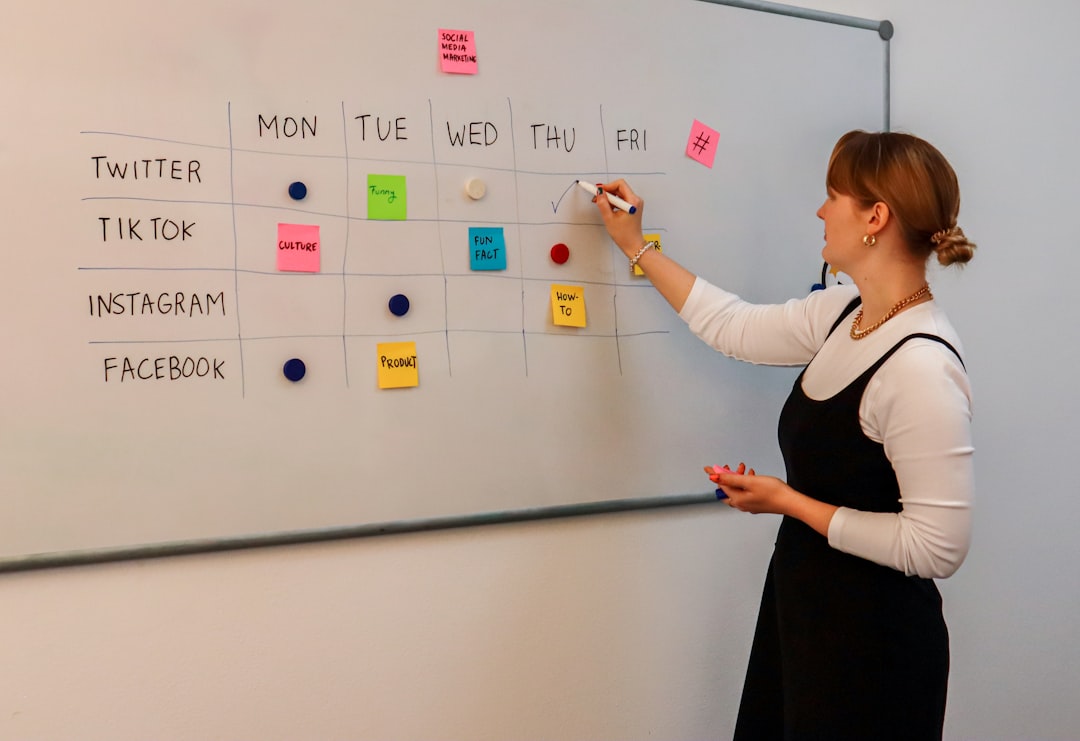
By dragging and dropping tasks between columns later, users will see clearly how work progresses visually.
Step 4: Add Sample Data (Create Issues)
Now comes the most important step: adding sample issues. In Jira, tasks are called issues. Beginners should create different issue types to simulate a real project.
Common Issue Types
- Story: A feature requirement.
- Task: A specific action item.
- Bug: A problem that needs fixing.
- Epic: A large body of work made up of smaller issues.
For a sample website redesign project, example issues might include:
- Story: Create homepage layout
- Task: Design navigation menu
- Bug: Fix mobile display overlap
- Story: Implement contact form
Each issue should include:
- A clear title
- A detailed description
- A priority level
- An assignee (even if assigned to oneself for testing)
Adding 10–20 sample issues provides enough data to fully test the board’s functionality.
Step 5: Organize Issues Into Epics (Optional but Recommended)
Epics help group related tasks. For beginners, this demonstrates how Jira organizes complex projects.
Example epics:
- Website Design
- Backend Development
- Testing and QA
Issues can then be assigned to relevant epics. This allows filtering by epic and improves clarity when managing multiple features.
Step 6: Create and Start a Sprint (For Scrum Boards)
If using a Scrum board, beginners should explore sprint management. The process typically involves:
- Creating a new sprint from the backlog view.
- Dragging selected sample issues into the sprint.
- Starting the sprint and defining its duration (e.g., two weeks).
Once started, the sprint board will show only issues included in that sprint. Users can then simulate progress by moving issues across columns.
Step 7: Simulate Real Project Activity
To make the sample data meaningful, beginners should simulate real-world activity:
- Move tasks from To Do to In Progress.
- Add comments to issues.
- Log time spent on tasks.
- Change priorities.
- Resolve bugs and move them to Done.
This simulation builds familiarity with how Jira tracks changes and maintains issue history.
Step 8: Use Filters and Reports
Even with sample data, beginners can explore reporting features such as:
- Burndown charts (Scrum).
- Cumulative flow diagrams (Kanban).
- Issue statistics reports.
Reports help users understand progress tracking and performance measurement — critical skills in project management.
Common Beginner Mistakes to Avoid
- Overcustomizing early: Start simple before adjusting workflows.
- Ignoring issue descriptions: Clear documentation is essential.
- Not using priorities: Prioritization teaches workload management.
- Skipping epics: Even in practice, structure improves learning.
By focusing on simplicity and clarity, beginners can maximize learning while minimizing confusion.
Benefits of Practicing With a Sample Jira Board
Creating a practice board offers long-term advantages:
- Builds technical confidence.
- Improves understanding of Agile methodologies.
- Prepares users for collaboration with real teams.
- Reduces onboarding time in professional environments.
Once comfortable, beginners can export sample configurations or replicate what they learned in real team projects.
Frequently Asked Questions (FAQ)
1. Does Jira provide built-in sample data?
Yes, some Jira templates include optional sample issues when creating a new project. Users can choose to generate these automatically or create their own manually for better practice.
2. Should beginners use Scrum or Kanban first?
Kanban is often easier to understand because it focuses on continuous workflow without sprint structure. However, those interested in Agile development may benefit from learning Scrum early.
3. How many sample issues should be created?
Creating between 10 and 20 issues is usually enough to simulate meaningful project activity without becoming overwhelming.
4. Can a sample project be deleted later?
Yes, users with appropriate permissions can delete practice projects at any time without affecting other projects.
5. Is Jira suitable for non-technical projects?
Absolutely. Jira can manage marketing campaigns, HR tasks, event planning, and many other workflows beyond software development.
6. Do beginners need advanced configuration knowledge?
No. Starting with a team-managed project avoids complex administrative settings, allowing beginners to focus on core project management skills.
By creating a Jira board with sample data, project management beginners gain hands-on experience that transforms theory into practical skill. Through careful setup, realistic issue creation, and simulated progress tracking, they develop the confidence necessary to manage real-world projects effectively.