
Use Google Sheets if you want a diet plan that calculates things. Use Canva if you want a diet plan that looks cute on the fridge. That is the simple answer. The best choice depends on whether your template needs math, beauty, sharing, or printing.
TLDR: Pick Google Sheets for calorie tracking, grocery totals, macros, and weekly meal changes. Pick Canva for pretty printable diet plans, client handouts, and social media meal guides. For example, a fitness coach with 20 clients may save 3 to 5 hours per week in Google Sheets by using formulas. But a wellness blogger may get 40% more downloads with a polished Canva meal planner.
Canva vs Google Sheets: The Quick Winner
If your diet plan template needs to think, use Google Sheets. If it needs to shine, use Canva.
That sounds too easy. But it is true.
Google Sheets is built for rows, numbers, totals, dropdowns, and updates. Canva is built for layouts, colors, icons, photos, and print-ready pages.
So ask yourself one thing first:
- Do I need calculations? Choose Google Sheets.
- Do I need a beautiful handout? Choose Canva.
- Do I need both? Build the plan in Sheets, then style the final version in Canva.
What Makes a Good Diet Plan Template?
A good diet plan template should make eating easier. Not harder. No one wants a “simple” meal tracker that takes 17 clicks to edit.
A strong template usually includes:
- Days of the week
- Breakfast, lunch, dinner, and snacks
- Calories
- Protein, carbs, and fat
- Water intake
- Grocery list
- Notes section
- Prep reminders
Some people only need meals. Others want macros. Some want a printable page. Others want a live tracker on their phone.
This is where Canva and Google Sheets split into very different lanes.
Canva for Diet Plan Templates
Canva is the pretty one. It helps you create a diet plan that looks clean, modern, and friendly. You can drag boxes around. Add food photos. Change fonts. Use icons. Pick colors that do not scream “sad hospital menu.”
Canva is great for:
- Printable meal planners
- PDF diet guides
- Client welcome packs
- Fridge charts
- Recipe cards
- Instagram meal plans
- Weight loss challenge sheets
It is also very beginner-friendly. You do not need to understand formulas. You do not need to build tables from scratch. You can start with a ready-made layout and edit the text.
The catch is that Canva is not great at math. Yes, you can type calories into a box. But Canva will not happily total breakfast, lunch, and dinner for you. It will not auto-calculate protein. It will not warn you that your “light snack” has 600 calories unless you type that yourself.
This gets annoying fast. If you change Monday lunch from chicken salad to pasta, you may need to update several numbers by hand. That means more room for mistakes. It also means more sighing.
Google Sheets for Diet Plan Templates
Google Sheets is the smart one. It may not win a beauty contest. But it is excellent for tracking food data.
You can build a diet planning template with:
- Auto-calculated daily calories
- Macro totals
- Weekly averages
- Dropdown meal choices
- Checkboxes for water intake
- Grocery lists pulled from meals
- Progress tracking
- Color alerts for high or low targets
For example, you can set a daily target of 1,800 calories. Then your sheet can turn green when the total is close. It can turn red when the total goes over. Simple. Useful. Slightly bossy.
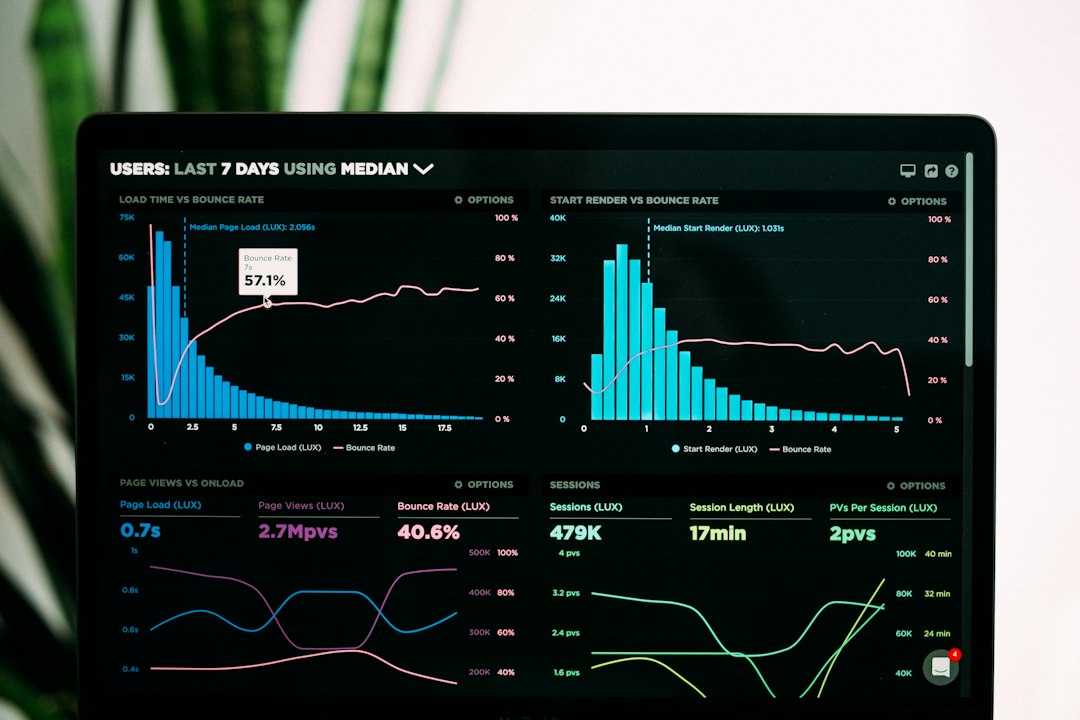
Google Sheets is also great for sharing. A coach can make one master template. Then they can copy it for each client. The client can update meals from a phone. The coach can check progress without asking for five screenshots and a blurry photo of lunch.
Honestly, it feels like Google Sheets was made for people who keep changing their meal plan on Tuesday night because they forgot to buy eggs.
Side-by-Side Comparison
| Feature | Canva | Google Sheets |
|---|---|---|
| Best for | Pretty printables and PDFs | Tracking and calculations |
| Ease of use | Very easy for design | Easy once set up |
| Calories and macros | Manual entry | Automatic with formulas |
| Printing | Excellent | Okay, but less stylish |
| Mobile editing | Good for small edits | Good for tracking |
| Client use | Great for handouts | Great for live updates |
When Canva Is the Better Choice
Choose Canva when you want the diet plan to feel polished. This matters more than people admit.
A plain spreadsheet can feel like homework. A colorful meal planner can feel like a fresh start. That can help users stick with the plan.
Canva is best when your template is meant to be:
- Printed and placed on a fridge
- Sold as a digital download
- Given to clients as a branded resource
- Shared on Pinterest or Instagram
- Used by people who hate spreadsheets
Canva also wins when branding matters. You can use your colors, logo, and style. A nutrition coach can make the plan feel personal. A gym can match its brand. A food blogger can make the template look like part of a full recipe pack.
When Google Sheets Is the Better Choice
Choose Google Sheets when accuracy matters. Choose it when the diet plan changes often. Choose it when people need numbers.
Google Sheets is best for:
- Macro-based meal plans
- Weight loss tracking
- Muscle gain plans
- Meal prep budgets
- Family grocery planning
- Client check-ins
- Fitness challenges
Here is a simple example. You want each day to include 150 grams of protein. In Google Sheets, the template can add protein from each meal. If the total is only 112 grams, you know right away. In Canva, you need to do that math yourself. No thanks.
Expect to waste time on tiny layout fixes in Sheets, though. Printing can be fussy. Columns break in weird places. One extra row can push your snack list onto a second page. Very rude.
The Best Combo: Google Sheets First, Canva Second
The smartest workflow is often to use both.
- Build the meal data in Google Sheets.
- Calculate calories, macros, and grocery totals.
- Check the plan for errors.
- Copy the final weekly plan into Canva.
- Style it as a PDF, printable, or client handout.
This gives you the best of both tools. Sheets handles the boring math. Canva makes it look like you have your life together.
Which Tool Should Beginners Use?
If you are brand new, start with Canva. It feels less scary. You can make a nice weekly planner in under an hour. Use simple sections. Keep it clean.
Try this layout:
- Top: Weekly goal
- Middle: Meal plan grid
- Side: Grocery list
- Bottom: Water and notes
If you already track food or use numbers, start with Google Sheets. Make columns for meal, food, calories, protein, carbs, and fat. Add totals at the bottom. Keep it ugly at first. Ugly but useful beats pretty but wrong.
Best Choice by User Type
- Fitness coach: Use Google Sheets for tracking. Use Canva for client PDFs.
- Nutritionist: Use both. Sheets for accuracy. Canva for presentation.
- Busy parent: Use Google Sheets for grocery planning.
- Blogger: Use Canva for downloads and lead magnets.
- Personal weight loss: Use Google Sheets if you track numbers. Use Canva if you need motivation.
- Gym owner: Use Canva for branded challenges. Use Sheets for check-ins.
Final Verdict
Google Sheets is better for a working diet plan template. It can calculate, update, and track progress. It is the better tool for serious planning.
Canva is better for a beautiful diet plan template. It is ideal for printables, PDFs, and client-facing designs. It turns plain meal plans into something people may actually want to use.
The best answer is not always one or the other. Use Google Sheets when the plan needs numbers. Use Canva when the plan needs charm. Use both when you want a diet planner that is smart, clear, and fridge-worthy.