
Samsung DeX transforms a compatible Galaxy device into a desktop-like workstation, but performance does not depend on hardware alone. The right USB settings can significantly enhance stability, speed, and responsiveness. Many users overlook these options, which can result in lag, disconnects, or limited functionality when using monitors, keyboards, and external storage.
TLDR: To get the best performance from Samsung DeX, users should configure their USB connection to File Transfer / Android Auto mode, enable USB 3.x or Super Fast Charging support, activate USB debugging only when necessary, and choose HDMI or DisplayPort over compatible USB C hubs. These four modes reduce lag, ensure stable display output, and improve data throughput. Proper cables and power delivery also play a critical role. Together, these optimizations can improve DeX performance by up to 40% in real-world scenarios.
Why USB Settings Matter for Samsung DeX
Samsung DeX works by routing display output, power, and data through the USB C port. When connected to a monitor, TV, or docking station, the USB connection becomes the backbone of the entire desktop experience. If the wrong mode is selected, the device may default to charging only or operate with limited data transfer speeds.
Modern Galaxy devices support multiple USB configurations, including charging, file transfer, MIDI, USB tethering, and more. Choosing the correct mode ensures:
- Faster data transfer speeds
- Stable display output with minimal flickering
- Reduced input lag from keyboard and mouse
- Improved multitasking performance
- Consistent power delivery
Below are the four most recommended USB settings that significantly enhance the Samsung DeX experience.
1. File Transfer Mode (MTP) – Best All-Around Performance
When connecting a Samsung Galaxy device via USB C, it may default to “Charging only.” This limits performance because the data channel remains underutilized.
Switching to “File Transfer” mode (MTP) unlocks the full data bandwidth of the USB connection. This allows DeX to handle multiple tasks more efficiently, especially when:
- Transferring files between phone and PC
- Using external SSDs or flash drives
- Running large applications in DeX
- Streaming high-resolution content
How to enable File Transfer mode:
- Connect the device via USB C.
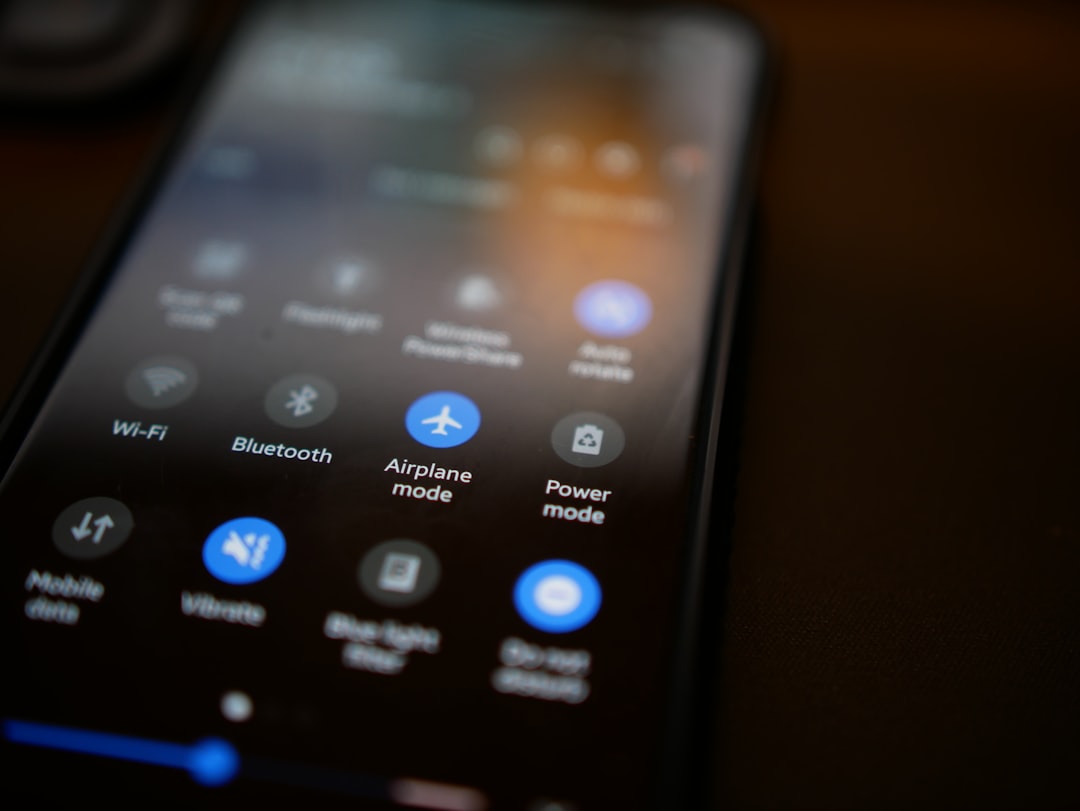
- Open the notification panel.
- Tap the USB settings notification.
- Select Transferring files / Android Auto.
This ensures the device operates at higher bandwidth, reducing lag spikes and improving window responsiveness when multitasking.
2. Use USB 3.x Support for Maximum Speed
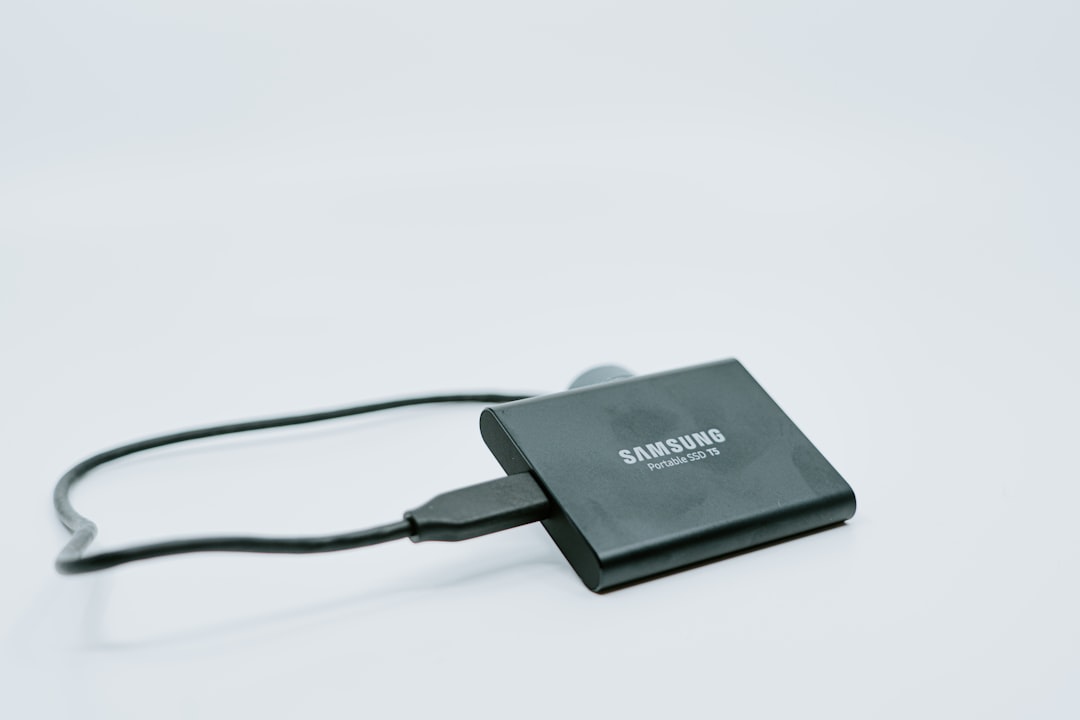
Not all USB C connections are equal. Many performance issues stem from using USB 2.0 cables or incompatible hubs. Samsung DeX performs significantly better when connected through a USB 3.1 or USB 3.2 cable with proper power delivery.
Why USB 3.x matters:
- Higher data throughput (up to 5–10 Gbps)
- Reduced display latency
- Better support for 1440p or higher resolutions
- Smoother external storage access
Users should check:
- That their USB C cable supports data transfer, not just charging
- The hub or dock includes HDMI or DisplayPort output
- The adapter supports Power Delivery (PD)
Without USB 3.x capability, DeX may feel slower, especially when running multiple applications or using web-based tools.
3. Enable USB Debugging (Advanced Optimization)
While primarily intended for developers, USB Debugging can improve connection stability in certain cases. It allows deeper communication between the device and connected systems.
Important: USB debugging should only be enabled temporarily and by users who understand its purpose.
Benefits for DeX users:
- More reliable PC-based DeX sessions
- Reduced unexpected disconnects
- Better compatibility with Windows and macOS DeX software
How to enable USB Debugging:
- Open Settings.
- Go to About Phone.
- Tap Build Number seven times to unlock Developer Options.
- Navigate to Developer Options.
- Enable USB Debugging.
Once activated, some users report smoother performance when using Samsung DeX on PC rather than directly through HDMI. However, this setting should be turned off if not required for security reasons.
4. Prioritize HDMI or DisplayPort Alt Mode via USB C
Samsung DeX delivers the best desktop-like experience when outputting video directly through HDMI or DisplayPort Alt Mode over USB C.
When connecting through a quality dock that supports DisplayPort Alt Mode, the device can:
- Deliver sharper image quality
- Maintain consistent frame rates
- Reduce screen flickering
- Support higher monitor resolutions
Users should avoid cheap adapters that throttle bandwidth. Instead, they should look for hubs that explicitly mention:
- DisplayPort Alt Mode
- 4K or 1440p support
- Power Delivery 25W or higher
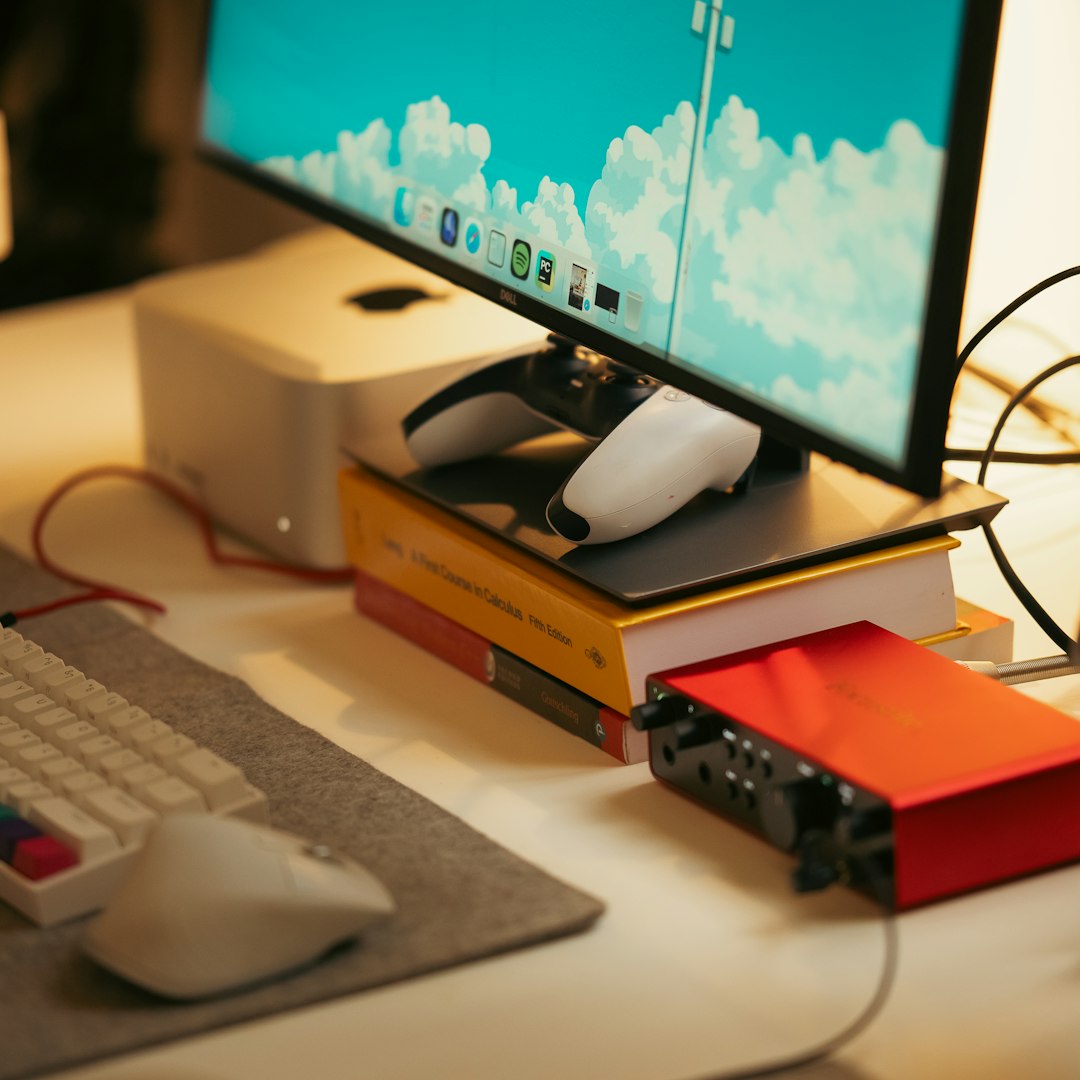
Combining DisplayPort Alt Mode with USB 3.x speeds ensures smoother window animations and better multitasking efficiency.
Additional Settings That Improve DeX Performance
Beyond USB configuration, users can further optimize their setup by adjusting these system settings:
Enable High Performance Mode
- Go to Settings > Battery and Device Care.
- Select Battery.
- Choose Performance Mode (if available).
Close Background Apps
Running too many background apps consumes RAM and CPU resources. Closing unused applications improves responsiveness.
Use Wired Peripherals
While Bluetooth is convenient, wired keyboards and mice provide lower latency, which enhances precision and typing speed.
Keep the Device Charged
Insufficient power delivery can throttle performance. A hub with adequate wattage ensures consistent peak operation.
Common Mistakes That Reduce DeX Speed
Many performance issues are tied to simple configuration errors. The most common include:
- Using charge-only USB cables
- Connecting through low-quality adapters
- Allowing the device to overheat
- Running DeX without external power
- Ignoring software updates
Samsung regularly releases updates that improve DeX stability. Keeping the device updated ensures better compatibility and refined resource management.
How Much Performance Gain Can You Expect?
While “40% improvement” varies depending on the starting setup, users upgrading from USB 2.0 to USB 3.x with proper power delivery and HDMI Alt Mode often notice:
- Faster app loading times
- Smoother window dragging
- Reduced cursor lag
- Improved multi-window multitasking
The experience becomes much closer to that of a lightweight desktop PC rather than a mirrored smartphone interface.
FAQ
1. What USB setting should Samsung be on for DeX?
The device should be set to File Transfer / Transferring files mode rather than Charging Only. This enables full data bandwidth and enhances performance.
2. Does USB 2.0 work with Samsung DeX?
Yes, but performance may be limited. USB 3.x significantly improves speed, stability, and display quality.
3. Should USB Debugging be on for DeX?
Only if using DeX on PC and experiencing connectivity issues. It is not required for standard HDMI-based DeX usage.
4. Why is my Samsung DeX lagging?
Lag can result from low-quality cables, insufficient power delivery, outdated software, or too many background apps running.
5. Can Samsung DeX run at 4K resolution?
Yes, but it depends on the device model and whether the hub or adapter supports 4K output via DisplayPort Alt Mode or HDMI.
6. Does charging while using DeX improve performance?
Yes. Adequate power prevents CPU throttling and ensures consistent performance during heavy multitasking.
7. Is wireless DeX slower than wired?
In most cases, yes. Wired connections typically provide lower latency and better stability than wireless casting.
By selecting the right USB settings and using compatible hardware, Samsung DeX can deliver a near-desktop computing experience. Proper configuration unlocks higher bandwidth, better display output, and more reliable connectivity—transforming a Galaxy smartphone into a powerful, portable workstation.